
What is inventory for?
Bilaro's inventory module tracks physical materials, supplies, and stock levels across central warehouses and site locations. It maintains an audit ledger of every receipt, issue, transfer, and adjustment, while calculating real-time stock balances and weighted-average valuations. For example, a construction contractor purchasing deformed steel rebar can receive bundles into a central holding yard, track available quantities across individual job sites, and record when rebar is issued to a specific site project.
If you don't see Inventory in the sidebar, your company doesn't have this module; ask your Admin or Bilaro support.
Who can use inventory
- Viewing stock levels, movements ledger, and inventory reports: All users across your organisation when the inventory module is switched on.
- Setting up and editing stores: Admin, Global Admin, Manager, and Finance roles.
- Setting up and editing stock items: Admin, Global Admin, Manager, and Finance roles.
- Raising reorder purchase requests: Admin, Global Admin, Manager, and Finance roles.
- Recording stock movements (Issue, Transfer, and Adjustment): Receiver, Manager, Director, Finance, Admin, and Global Admin roles.
- Overriding negative stock balances: Admin, Finance, and Global Admin roles.
- Choosing a destination store on goods receipts: Receiver, Manager, Director, Finance, Admin, and Global Admin roles.
How to set up a store
- Open Inventory from the sidebar.
- Click the Stores tab.
- Click Add store in the top right header.
- In Store Name, enter a unique name for the storage location (for example,
Main Central WarehouseorSite Yard A). - In Linked Project, select a project if this store belongs to a specific construction site, or select None (general store) if it is a general company warehouse.
- Click Create.
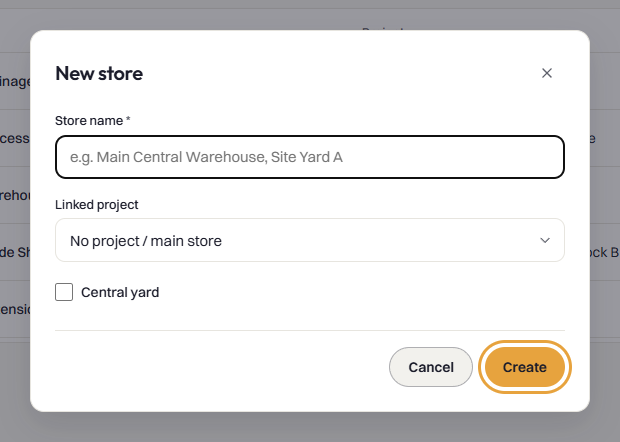
Note: To modify an existing location, click Edit on that store's row. You can update its name, change or clear the linked project, or toggle the Active switch. A store cannot be deactivated while it holds any non-zero stock balance; you must transfer or adjust all remaining stock out first. Tip: Linking a store to a project allows Bilaro to pre-select that store automatically when receiving goods ordered for that project.
How to create a stock item
- Open Inventory from the sidebar and click the Items tab.
- Click Add item. The New stock item dialog opens.
- In Item Code, enter a unique identification code (for example,
STL-BAR-01). Bilaro automatically converts codes to uppercase. - In Item Name, enter the item description (for example,
Deformed Steel Bar 12mm). - In Unit of Measure (UOM), enter or choose the unit (for example,
PCS,KG,M, orBOX). The default is PCS. - In Category, optionally enter a grouping category (for example,
Raw Materials,Safety, orTools). - In Minimum Reorder Level, enter the minimum quantity that should remain on hand across all stores before reordering (defaults to
0). - Ensure Track inventory movements is checked to track stock balances and ledger movements for this item.
- Click Create.
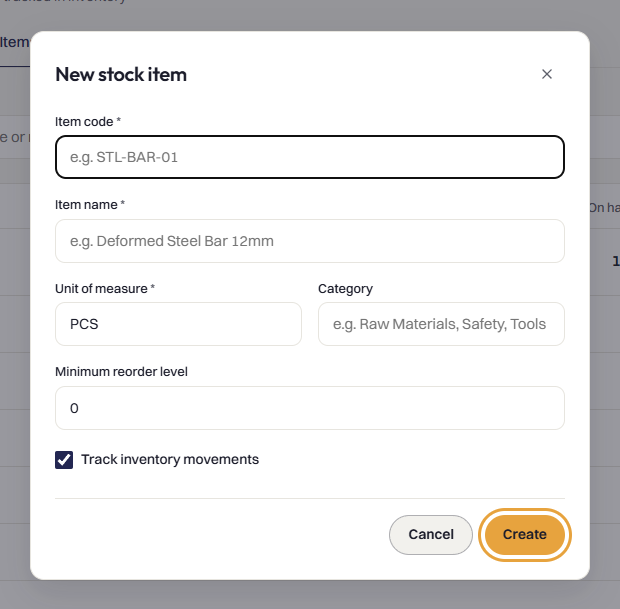
Note: You can click Edit on any item to update its name, unit of measure, category, reorder level, or tracking status. An item cannot be set to inactive if any store still has an on-hand balance. Tip: Use clear, consistent item codes so that line items on purchase requests and supplier deliveries match your catalog effortlessly.
How to add stock through goods receipts
- Open Receipts from the sidebar.
- Under Pending deliveries, find the active purchase order and click Receive (or open the purchase order and click Record goods received).
- Under Receipt type, ensure GRN (Goods Receipt Note) is selected.
- In Received date, confirm or select the physical delivery date.
- In Delivery note reference, enter the vendor's delivery order or consignment note number.
- Under Store, select the destination warehouse or site store where the goods are being placed. If the purchase order is assigned to a project with a dedicated store, Bilaro automatically selects that store; otherwise, it defaults to Default (project store).
- Under Line items verification, confirm the quantities received and select the condition for each item (Good, Damaged, or Missing).
- Upload the signed supplier delivery document under Delivery order scan, and click Save receipt. (If your company requires a delivery order scan, the button reads DO Upload Required until a file is attached.)
- When a user with receiving permissions confirms the receipt, Bilaro automatically posts a Receipt In movement to the stock ledger for every line item that matches an active tracked stock item.
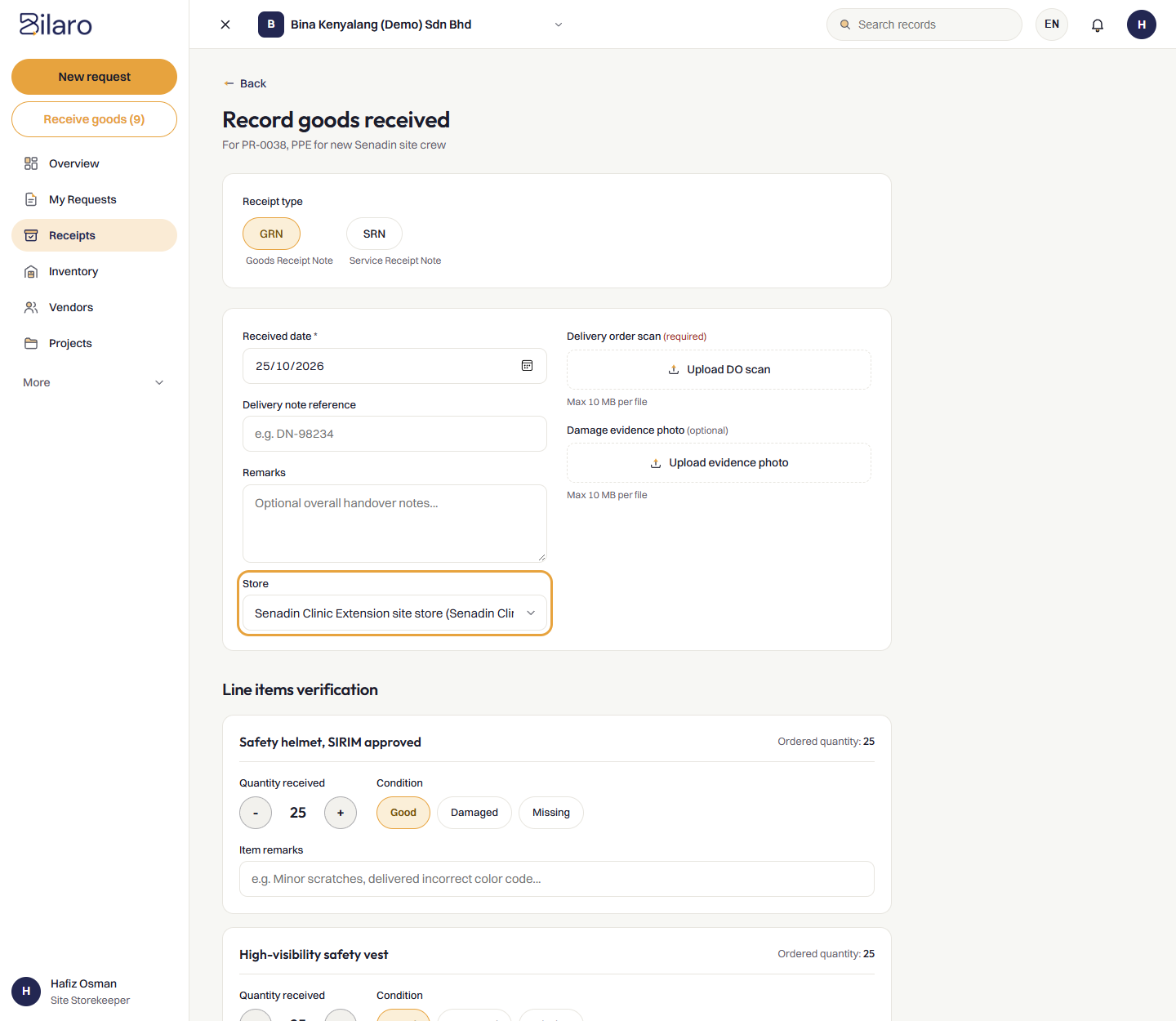
Note: A purchase order line item automatically maps to a stock item when its description matches the item code or name, or starts with the item code. Service Receipt Notes (SRN) do not post into inventory. Tip: For full details on recording partial deliveries, attaching delivery orders, and offline mobile receipting, see the Receiving goods and services guide.
How to issue stock
- Open Inventory from the sidebar and click the Movements tab.
- Click Record movement.
- On the movement type switcher at the top of the modal, select Issue.
- In Stock item, select the item you are issuing.
- In Store, select the store or warehouse where the items are being drawn from.
- In Quantity, enter the quantity to issue.
- Under Charge to, select either Project or Department:
- If Project is selected, choose the target project from the Select Project dropdown.
- If Department is selected, choose the cost centre from the Select Department dropdown.
- In Reason, enter an optional explanation, job number, or site requisition reference.
- Click Save.
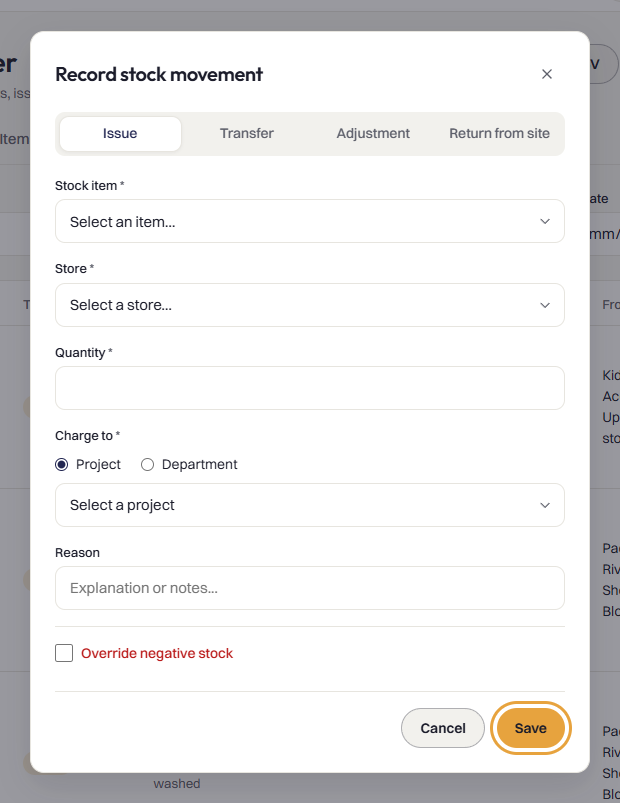
Note: Bilaro prevents issuing more stock than is available in the selected store. If an issue must proceed immediately before incoming receipts are recorded, users with the Admin, Global Admin, or Finance role can check Override negative stock and enter an Override Reason (required) of at least 3 characters. Every override is recorded in the company audit log.
How to transfer stock between stores
- Open Inventory from the sidebar and click the Movements tab.
- Click Record movement.
- On the movement type switcher, select Transfer.
- In Stock item, select the material or item being relocated.
- In From store, select the dispatching store.
- In To store, select the receiving store. The source and destination stores must be different.
- In Quantity, enter the number of units to move.
- In Reason, enter any optional transit notes, vehicle numbers, or transfer justifications.
- Click Save.
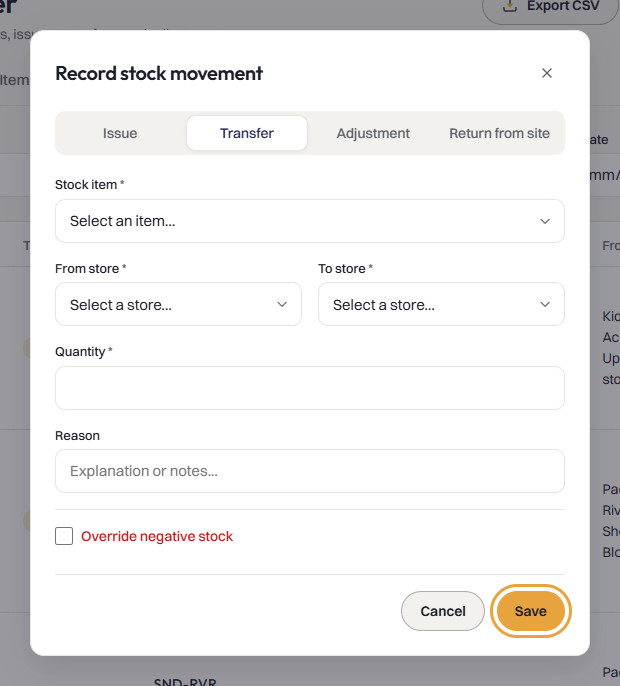
Note: A transfer moves stock between two locations without altering your organisation's overall inventory quantity or charging costs to a project or department. If the source store lacks sufficient stock, users with the Admin, Global Admin, or Finance role can check Override negative stock and provide an Override Reason (required).
How to adjust stock
- Open Inventory from the sidebar and click the Movements tab.
- Click Record movement.
- On the movement type switcher, select Adjustment.
- In Stock item, select the item you are adjusting.
- In Store, choose the warehouse or site location where the discrepancy occurred.
- In Quantity (+ to add, - to deduct), enter the adjustment amount:
- Enter a positive number (for example,
15) to increase stock after a physical audit. - Enter a negative number (for example,
-4) to write off damaged, lost, or scrapped stock.
- Enter a positive number (for example,
- In Unit cost (RM), optionally specify a unit price if adding stock. If left blank, Bilaro defaults to the store's current weighted-average cost.
- In Reason, enter an explanation of at least 3 characters (for example,
Stock count reconciliationorScrapped due to water damage). - Click Save.
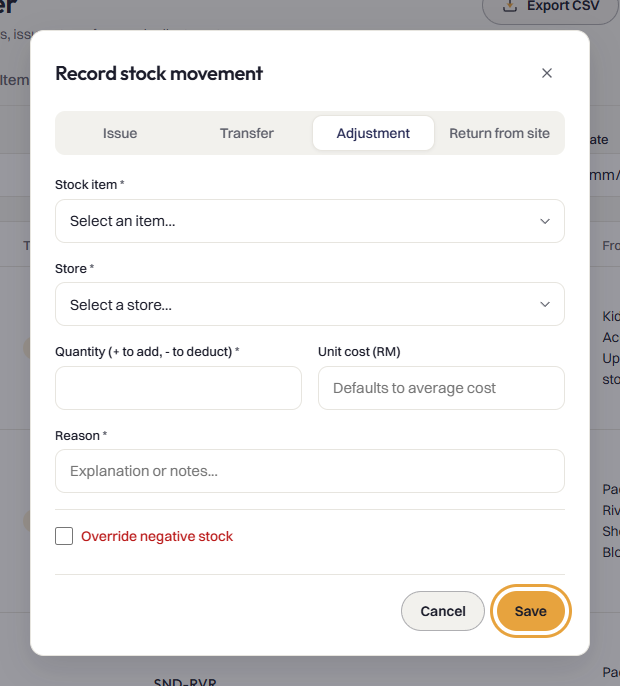
Note: A reason of at least 3 characters is mandatory for every adjustment. Negative adjustments cannot take store balances below zero unless an Admin, Global Admin, or Finance user enables Override negative stock and provides an Override Reason (required).
How to reorder low-stock items
- Open Inventory from the sidebar and click the Items tab.
- Check the Low stock only checkbox above the catalog to view only items whose company-wide stock on hand has fallen below their Minimum Reorder Level.
- Locate the item marked with the amber Low stock status badge.
- In the actions column on the right, click Draft PR.
- Bilaro creates a purchase request in Draft status titled
Reorder: <Item Code> <Item Name>:- The reorder quantity is automatically calculated to bring total company stock back up to twice the minimum reorder level.
- The line item unit price pre-fills using the item's weighted-average cost across all stores.
- If an open draft or approval already exists for this item, Bilaro opens the existing request instead of creating a duplicate.
- Bilaro navigates directly to the draft request under Requests, where you can select a vendor, assign project or department cost allocations, and submit the request for approval.
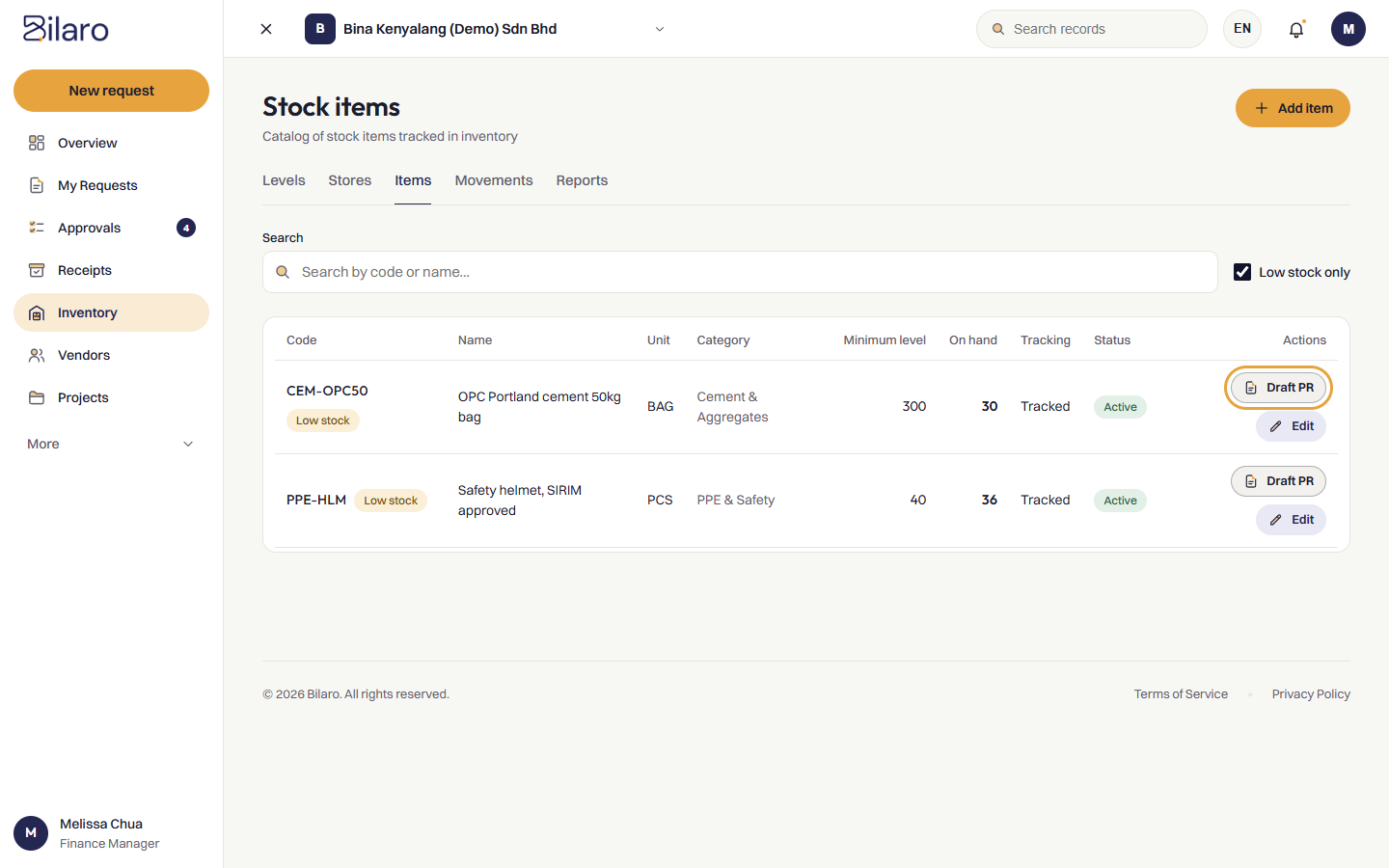
Note: When a stock movement causes an item to fall below its minimum reorder level, Bilaro sends an automatic bell notification to all users with the Admin and Finance roles, including a direct link to the low-stock catalog. Users with the Admin, Global Admin, Manager, and Finance roles can click Draft PR. Tip: For next steps on routing the draft request through approvals and issuing purchase orders, see the Raising and tracking procurement requests guide and the Finance Guide.
How to view stock levels and the stock ledger
- Open Inventory from the sidebar.
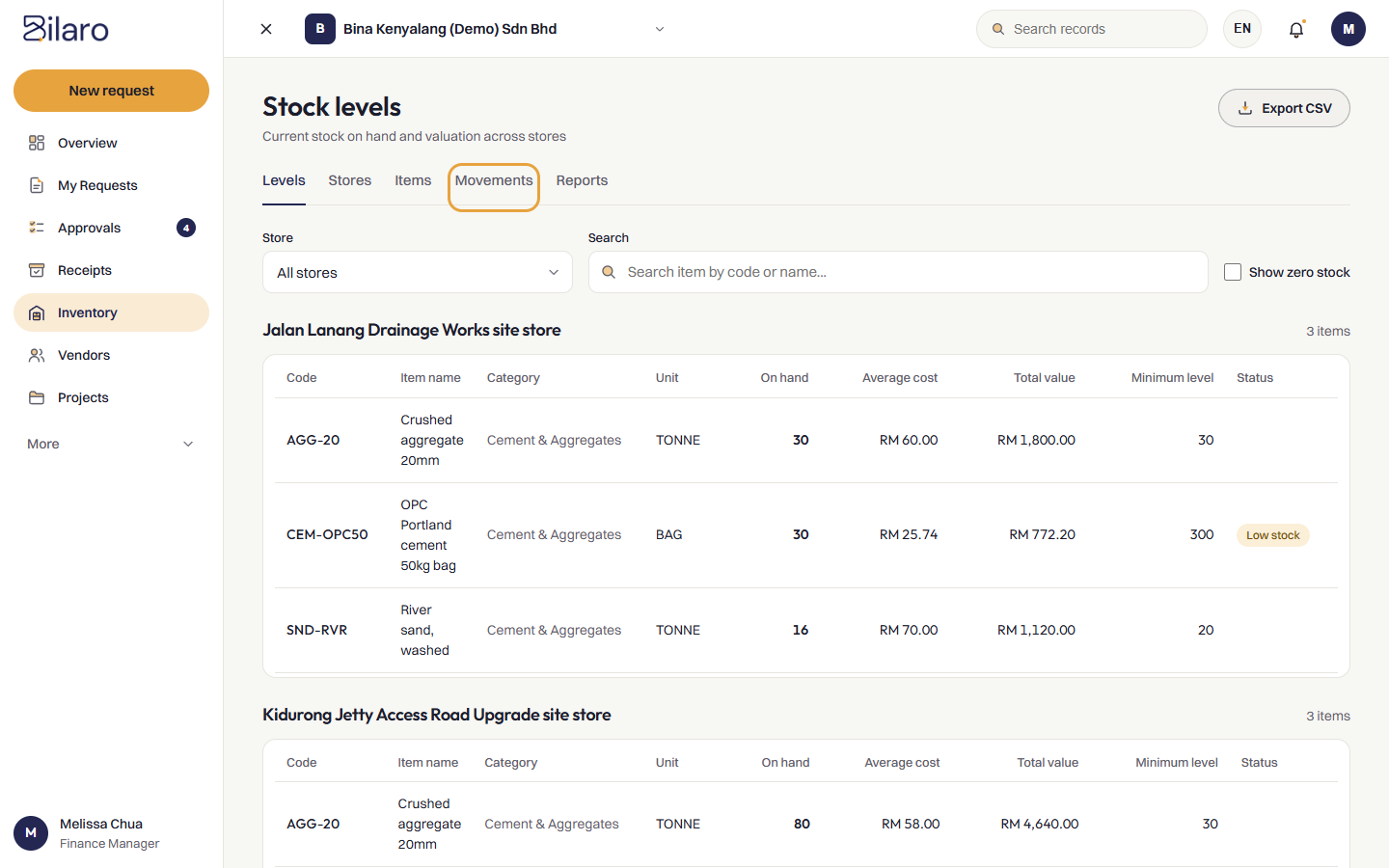
- On the default Levels tab, review current balances grouped by store:
- Filter by location using the Store dropdown, or find specific materials using the Search field.
- Check Show zero stock to include catalog items with zero balances in that store.
- Review columns including Code, Item Name, Category, Unit, On hand, Average cost, Total value, Minimum level, and Status (Low stock badge).
- Click Export CSV in the header to download a spreadsheet of current stock levels.
- Click the Movements tab to view the chronological stock ledger:
- Filter transactions by Store, Stock item, Movement type (Receipt In, Issue, Transfer, or Adjustment), or date range (From date and To date).
- Each row details the date, movement type badge, item code and name, quantity, unit cost, total value, source and destination stores, and reference notes (such as goods receipt number, charged project or department, and reason).
- Click Export CSV to download up to 10,000 movement records.
Tip: On mobile phones, stock levels and ledger entries display as responsive cards, highlighting primary item names, quantities, and movement badges.
How to run inventory reports
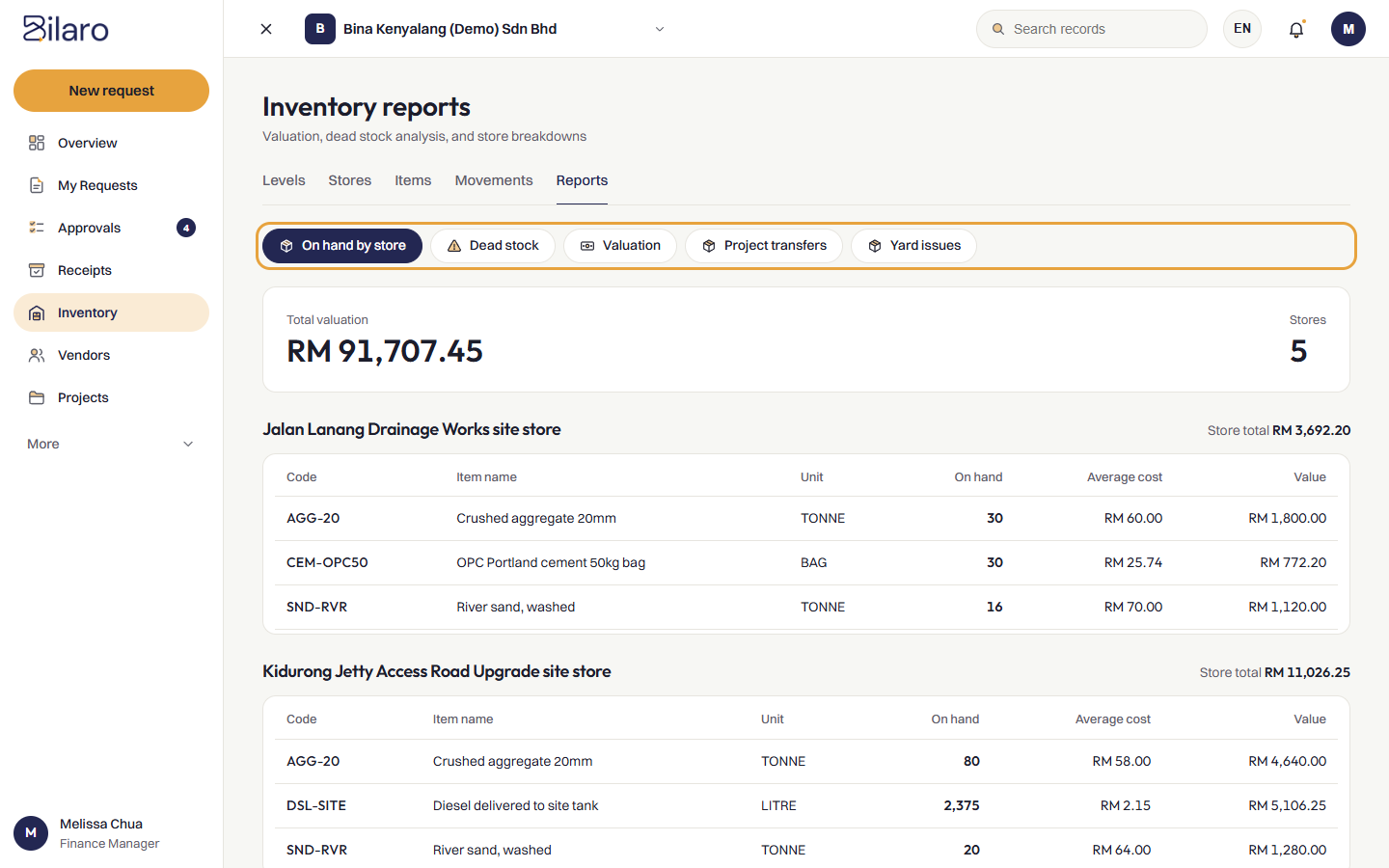
- Open Inventory from the sidebar and click the Reports tab.
- Choose a report by clicking one of the three subtabs:
- On hand by store: View stock on hand broken down into individual tables for each warehouse and site store. Summary KPI cards at the top display the total company valuation and active store count, while each store section displays its own store total.
- Dead stock: Identify slow-moving materials that have had no movement for an extended period. In Days without movement, enter the threshold days (defaults to
90) and click Filter. The report displays each idle item, its on-hand quantity, tied-up total value, last movement date, and number of days idle. - Valuation: View company-wide inventory valuation using weighted-average costing across all stores. Displays the item code, description, category, unit of measure, total quantity on hand, average unit cost, and total value.
- Review total inventory values in the top KPI summary cards for financial reporting and site material audits.
Tip: Run the Dead stock report prior to site closures or quarter-end reviews to reallocate idle materials to other active projects before ordering new stock.
Need more help? Email support@bilaro.my.