
How to find purchase orders awaiting delivery
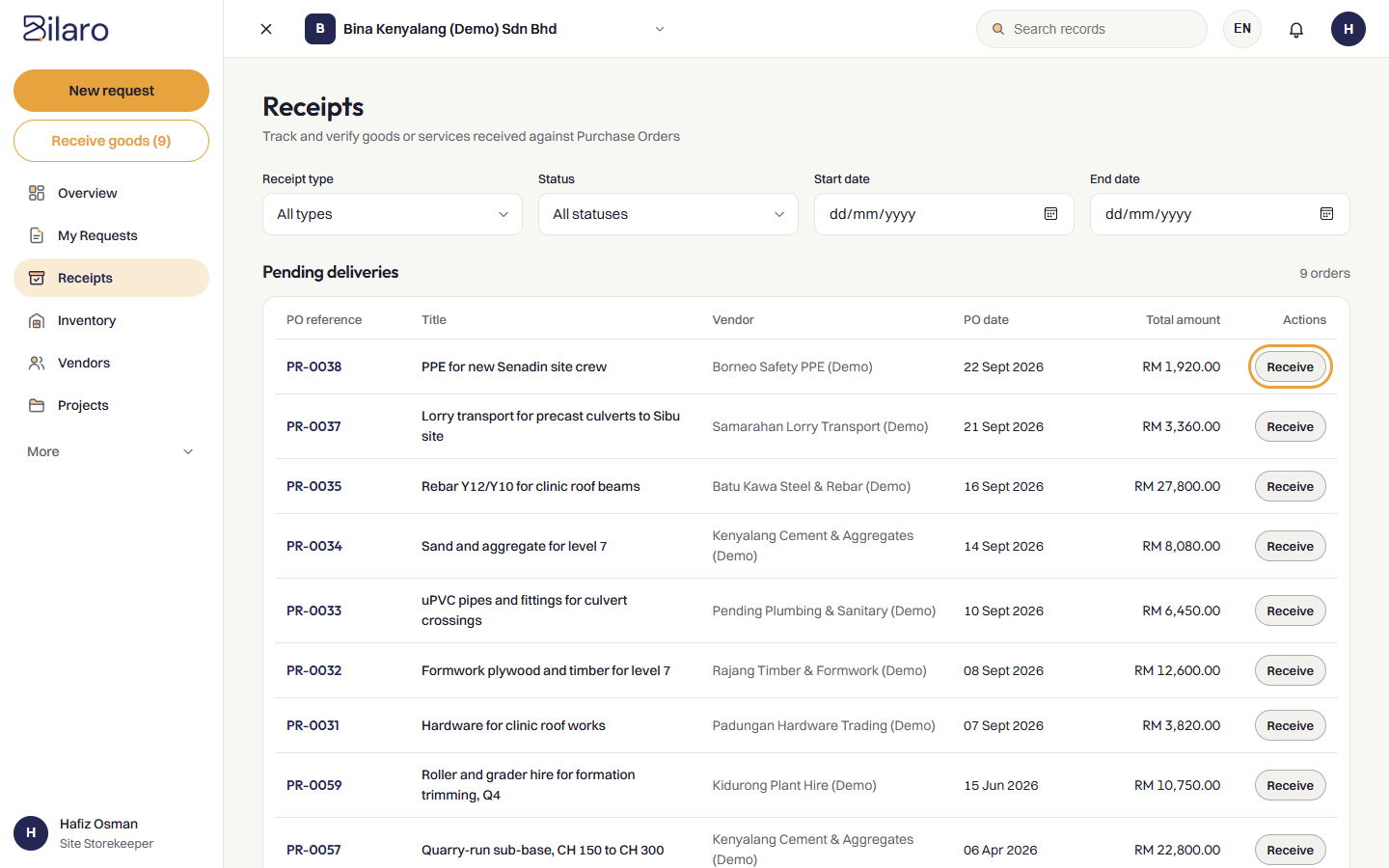
- Click To do and look at the Receive goods section, or click Receipts in the sidebar.
- Look at the Pending deliveries section at the top of the receipts page. This list displays all active purchase orders currently in
PO Issuedstatus awaiting delivery. - You can also locate an order from My Requests or global search and click its Receiving tab.
- In the pending deliveries list or on the PO's Receiving tab, click Receive (or Record goods received) next to the relevant purchase order to open the receipt form.
How to record a goods receipt note (GRN)
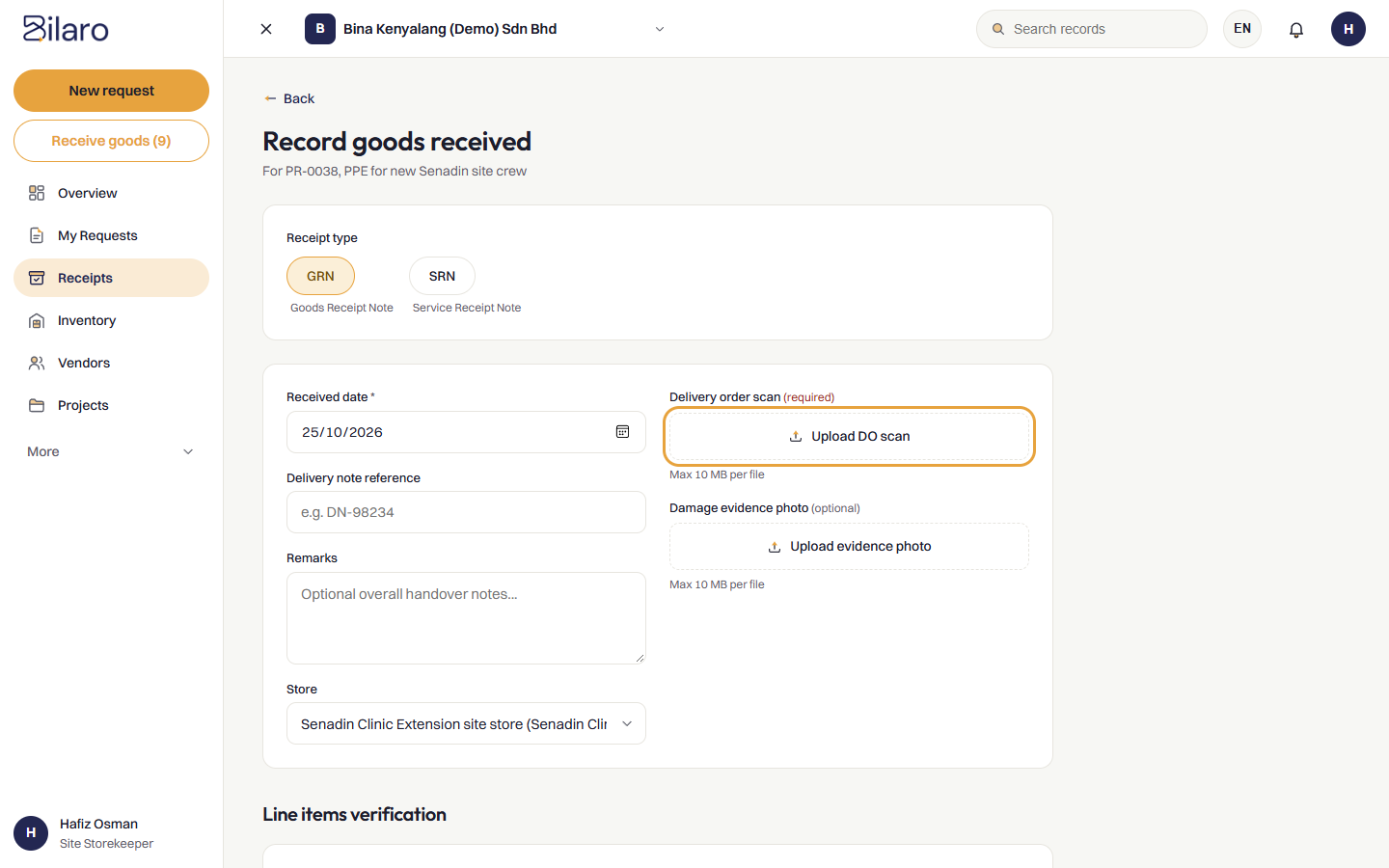
When physical supplies, materials, or equipment arrive at your warehouse, office, or site:
- On the receipt creation form, under Receipt type, select GRN (Goods Receipt Note).
- In the Received date field, select the date the items physically arrived.
- In Delivery note reference, type the vendor's Delivery Order (DO) or Consignment Note number (for example,
DO-98234). - Attach the supplier delivery order:
- Under Delivery order scan, click Upload DO scan.
- Select the scanned PDF or photographed image of the signed delivery order from your device.
- Note: If your organisation enforces mandatory delivery order scanning (
do_scan_mandatory), you cannot save the receipt without uploading this document.
- If any items arrived broken or defective:
- Under Damage evidence photo, click Upload evidence photo to attach photographs of the damaged items or packaging.
- If your company uses the inventory management module:
- In the Store dropdown, select the destination project store or warehouse where the items are being stocked.
- Verify individual items in Line items verification:
- Check the Ordered quantity for each item.
- Adjust the Quantity received using the - and + buttons (or type the received count directly).
- Select the Condition for each line item: Good, Damaged, or Missing.
- If an item has defects or missing components, enter details in Item remarks.
- In the Remarks field, add any overall handover observations.
- Click Save receipt to finalise the record.
How to record a service receipt note (SRN)
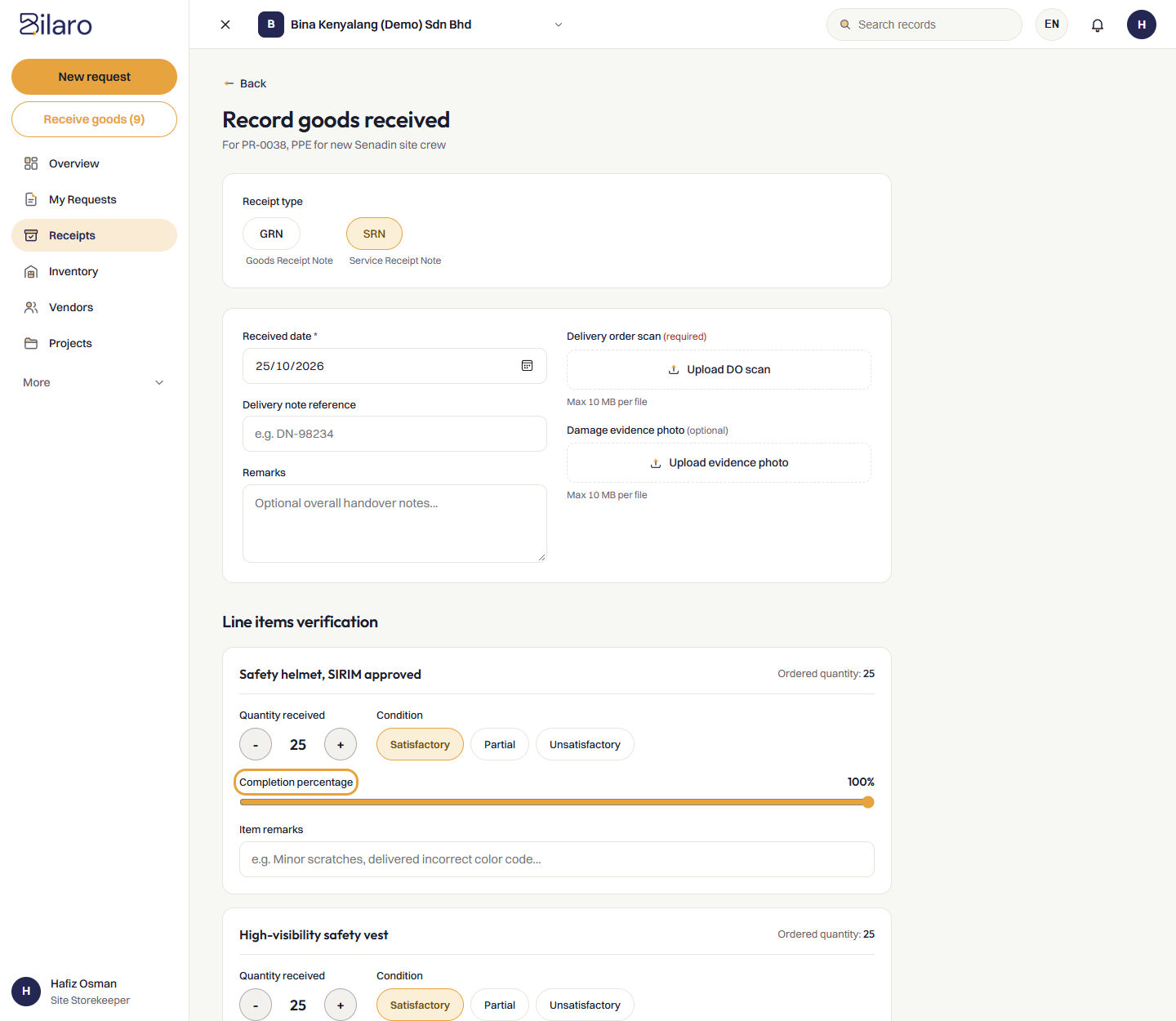
When a contractor, repair service, or professional consultant completes work:
- Under Receipt type, select SRN (Service Receipt Note).
- In Received date, enter the service completion date.
- In Delivery note reference, enter the service report number, timesheet reference, or job sheet reference.
- In Line items verification:
- Verify the service description.
- Select the service Condition: Satisfactory, Partial, or Unsatisfactory.
- Adjust the Completion percentage slider (ranging from 0% to 100% in 5% increments) to indicate the proportion of work delivered.
- Enter relevant details in Item remarks (such as milestones completed or snags noted).
- Upload the signed service report or contractor job sheet under Delivery order scan.
- Click Save receipt.
How to handle partial deliveries and variances
If a supplier delivers only part of an order:
- In the receipt form, set Quantity received to the actual quantity physically received for each item.
- If items were not delivered, set their received quantity to
0. - Select the appropriate condition and note any explanation in Item remarks.
- Click Save receipt.
- Bilaro automatically sets the purchase order fulfilment progress to
Partially Received. - When the supplier delivers the remaining goods later:
- Reopen the purchase order.
- Click Record goods received again to create an additional receipt note.
- Once all quantities across all receipts match or exceed the purchase order, the order marks as
Fully Received.
How to work offline on mobile devices
Bilaro allows site staff and warehouse personnel to record deliveries even without mobile data or Wi-Fi coverage:
- Open the receipt form on your mobile browser while on site.
- If network connectivity drops, Bilaro preserves your session and allows you to fill out the form and attach camera photos.
- When you tap Save receipt, Bilaro stores the receipt locally on your device and alerts you: "Saved on this device - it will send automatically when you're back online".
- The receipt appears under the Waiting to send queue in the receipts section.
- As soon as your device reconnects to a mobile or Wi-Fi network, Bilaro uploads the receipt and attachments to the server automatically.
How to update the fulfilment status of a purchase order
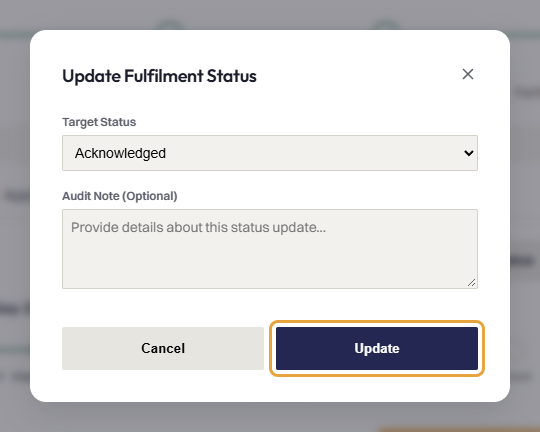
Receivers, Managers, and Finance staff can update the delivery progress of an active purchase order before or during shipment:
- Open the purchase order details page and click the Receiving tab.
- Click Update delivery status.
- In the Target Status dropdown, choose the updated progress stage:
- Acknowledged: The vendor has confirmed receipt of the purchase order.
- In Production: The vendor is manufacturing or preparing the goods.
- Dispatched: The goods have left the vendor's premises and are in transit.
- Closed: All deliverables, invoices, and acceptance checks are finished.
- Cancelled: Fulfilment has been aborted with the vendor.
- In Audit Note (Optional), enter relevant delivery tracking details (such as courier tracking numbers or vehicle plate references).
- Click Update.
How to set or change the expected delivery date
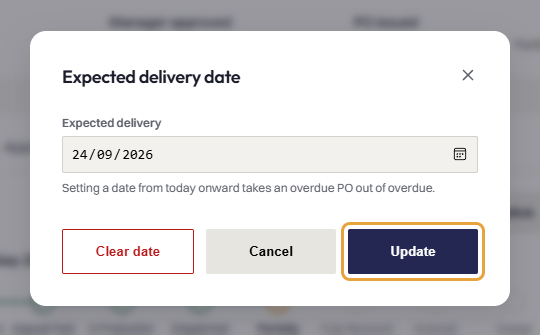
Setting an expected delivery date ensures your team can track shipment timelines and identify overdue orders:
- Open the purchase order and navigate to the Receiving tab.
- Locate the Expected delivery label and click Edit.
- In the Expected delivery date modal:
- Select a date using the calendar picker.
- Note: The system accepts dates from today onward based on Malaysian local time (UTC+8).
- Setting a new valid date automatically clears an Overdue status badge if the order had previously exceeded its deadline.
- If you need to remove the scheduled delivery date entirely, click Clear date.
- Click Update to save the delivery schedule.
Need more help? Email support@bilaro.my.