
How to raise a procurement request
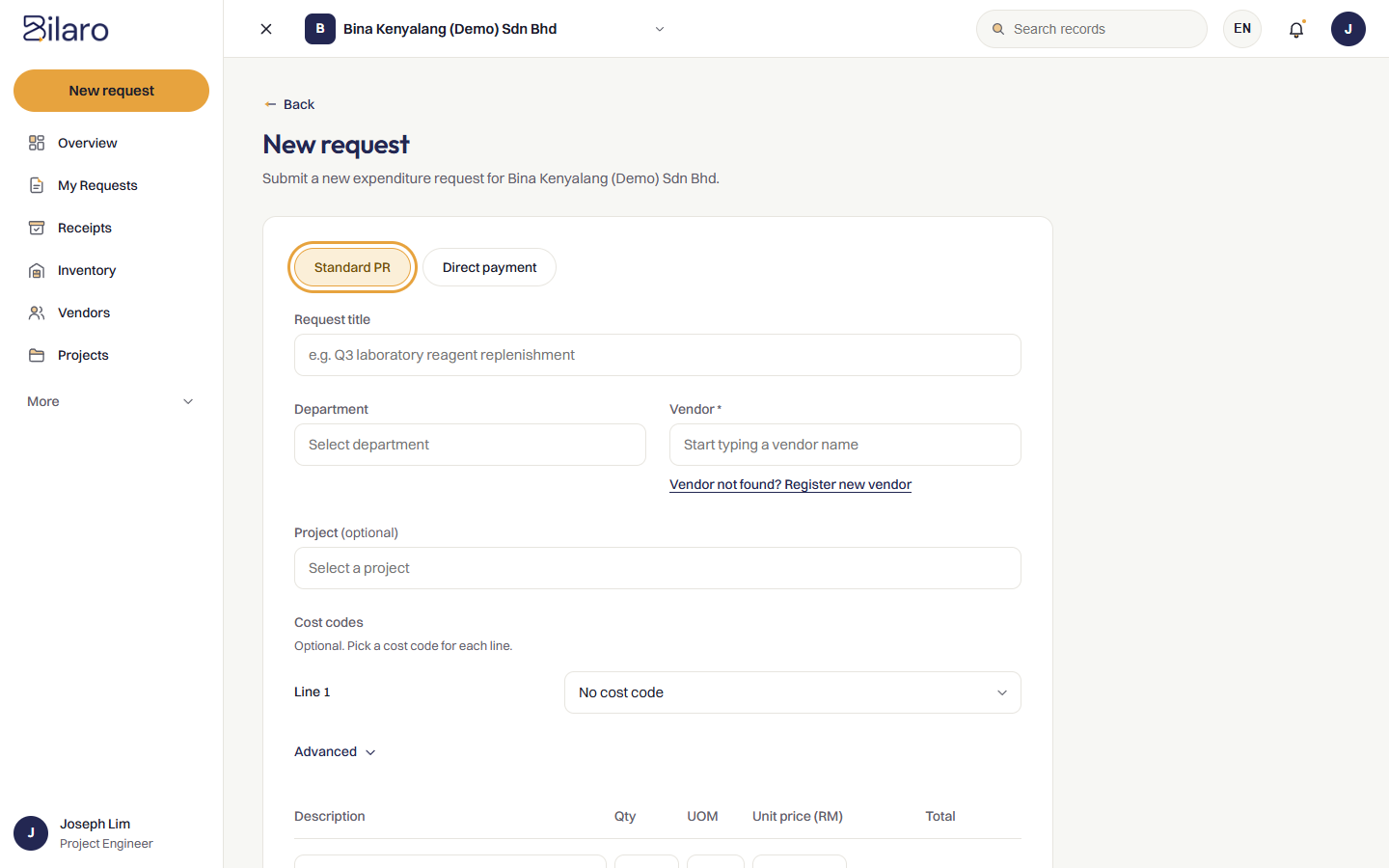
- Click New request in the sidebar navigation (or click New request from the Requests screen).
- Choose your request type:
- Select Standard PR for standard supplier purchases that require a formal purchase order and goods receipt.
- Select Direct payment for immediate expense claims or direct disbursements that bypass the purchase order stage.
- Complete the request header information:
- In Request Title, enter a concise, descriptive title (for example, "Quarterly Safety Equipment Restock").
- In Department, select your department from the dropdown list.
- In Project, select a project tag if this purchase relates to a specific project code.
- In Vendor, enter the supplier name.
- Add your line items:
- In Item description, type the exact description of the goods or services.
- In Quantity, enter the number of units required.
- In Unit price (RM), enter the unit cost excluding tax.
- In SST (%), choose the applicable Sales and Service Tax rate (such as 0%, 6%, or 8%).
- Click Add item to add additional line items as needed.
- Click Remove alongside any item row if you need to delete it.
- Attach supplier documentation:
- Under supporting documents, click Add quotation to upload the supplier quotation file.
- If your organisation enforces competitive quotation thresholds, ensure you attach all required comparative quotes.
- Submit or save your request:
- Click Submit request to send the request directly into the approval workflow.
Tip: To tag line items to project cost codes or Bill of Quantities items, see the Project Costs Guide. If you are raising a recurring expense (such as rent, utilities, or ongoing services), see the Recurring Payments, Calendar, and Supplier Reviews Guide.
How to track your requests
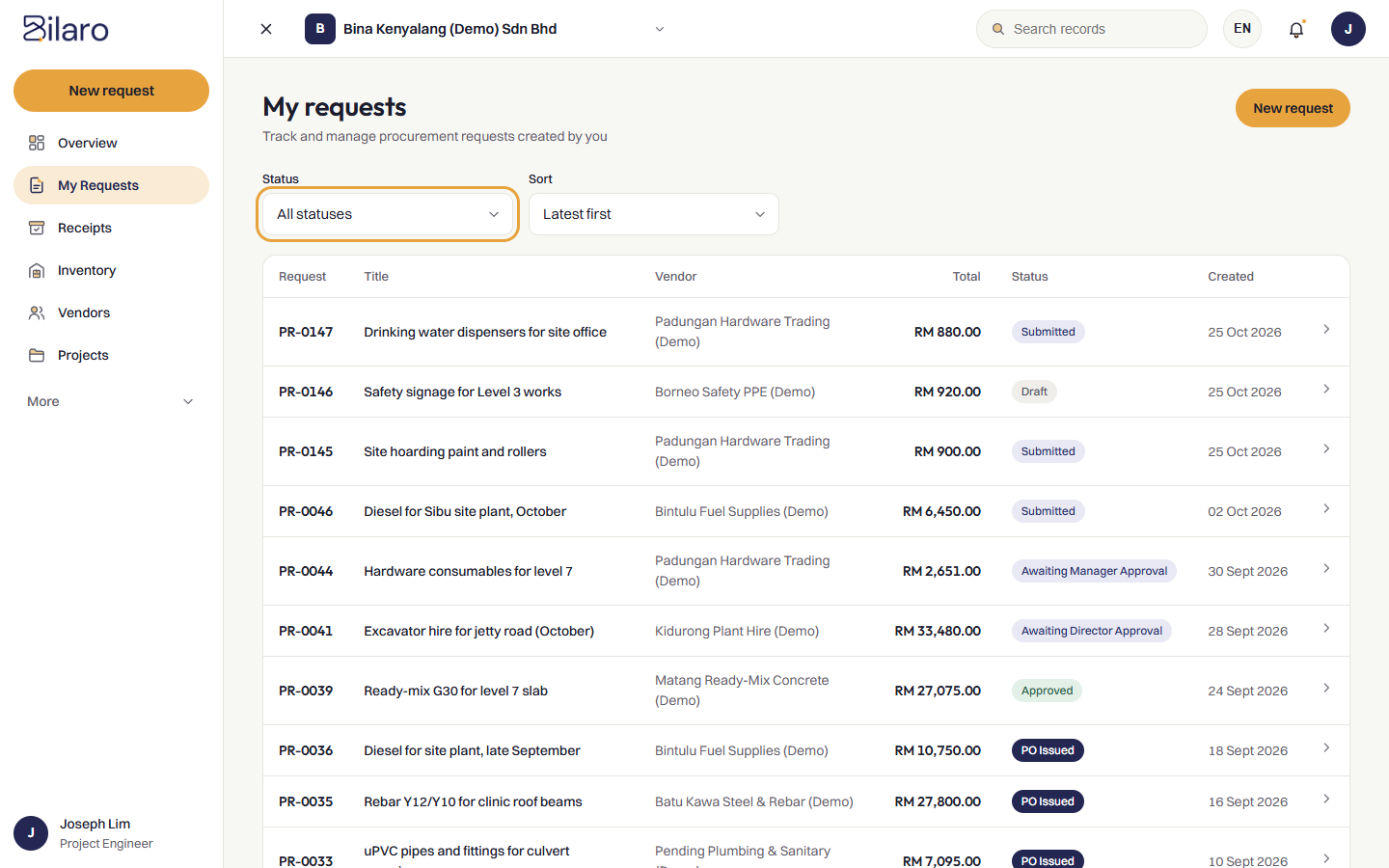
- Click Requests in the sidebar navigation.
- Select a tab to scope your requests:
- Mine: Track requests you raised.
- All: Track all requests across the organisation that your role permits you to see.
- Approved by me: View requests you reviewed and approved (available to Managers, Directors, and Admins).
- Pending payments: Review and process pending disbursements (available to Finance and Admins).
- Switch between List and Board views using the switch at the top right of the tabs:
- List view: Displays requests in a paginated list with reference number, title, vendor, creation date, status, and total amount. Click Load more to load additional rows.
- Board view: Displays requests in Kanban columns by status (including Draft, Submitted, Waiting for manager, Waiting for Director, Approved, PO Issued, Payment Pending, Paid, and Cancelled), with aging indicators and column totals.
- Filter your requests using the controls:
- Use the Status dropdown to filter by specific progress stages (such as All statuses, Draft, Submitted, Awaiting Manager Approval, Awaiting Director Approval, Approved, PO Issued, Payment Pending, Paid, or Cancelled).
- Use the Project dropdown to filter by a specific project code.
- In List view, use the Sort dropdown to sort requests by Latest first or Oldest first.
- In Board view, use the Time period dropdown to view the Last 90 days or All requests.
- View the summary information in the list: reference number, title, vendor, creation date, and total amount (including SST).
- Click any request row in the table or card on the board to open the full request details page.
Understanding request statuses
Every procurement request moves through a defined lifecycle. The table below outlines what each status means and what action occurs next:
| Status label | Meaning and next action |
|---|---|
| Draft | The request has been saved by the requester or returned following rejection. It is visible only to you and administrators, and has not yet entered the approval queue. |
| Submitted | The request has been submitted and is awaiting initial managerial review. |
| Awaiting Manager Approval | The request is assigned to a Manager for review and approval. |
| Awaiting Director Approval | The request requires Director review (for purchases exceeding the company manager threshold or under specific company rules). |
| Awaiting group approval | The request has triggered multi-entity or group approval rules and requires group sign-off. |
| Approved | All required approvals are complete. The request is ready for Finance or Admin to issue a Purchase Order. |
| PO Issued | The official Purchase Order has been generated or uploaded. The order is active, and receiving staff can record deliveries. |
| Payment Pending | For standard POs, goods or services have been received and invoice matching is pending payment. For direct payments, disbursement is awaiting processing by Finance. |
| Paid | Finance has processed the payment and recorded the transaction reference. The request is complete. |
| Cancelled | The request or purchase order was formally cancelled and closed. No further actions can be taken. |
How to edit and resubmit a returned request
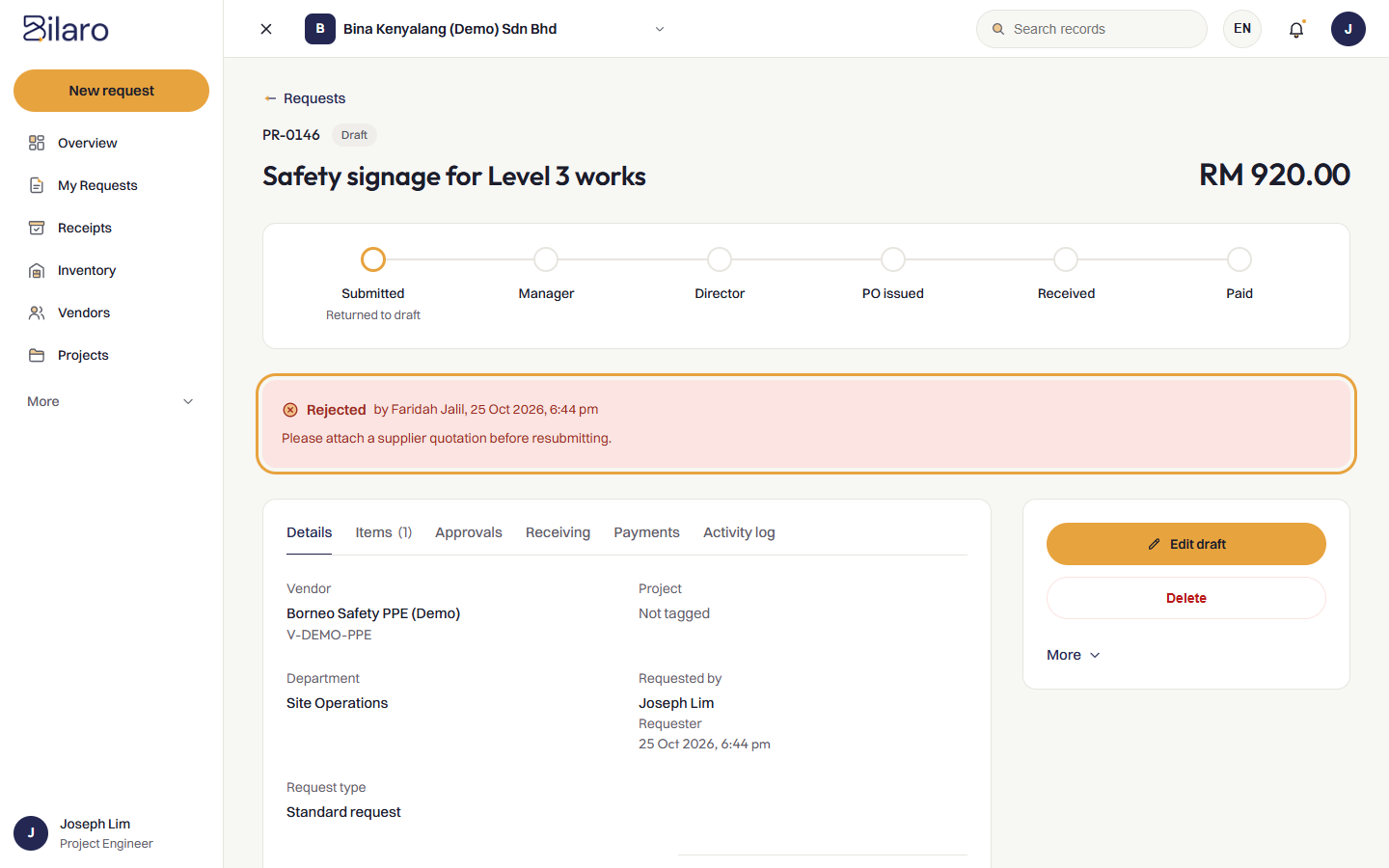
If an approver determines that information is missing or quotes are incomplete, they return the request to Draft status rather than deleting it.
- Locate the request in To do under the Returned to you section (and click Fix and resubmit), or find it marked Draft in Requests under the Mine tab, and open it.
- Review the red banner at the top of the page labelled Request Returned to Draft. The approver's mandatory feedback is displayed under Reason.
- Under the Draft Actions panel on the right-hand side, click Edit & Resubmit.
- Make the necessary modifications on the edit form (such as amending quantities, revising prices, or attaching a new quotation document).
- Click Update and resubmit. The request returns to the approval queue with status
Submitted, and the reviewer is notified.
How to withdraw or delete a request
Withdrawing a pending request
If you discover an error after submitting a request, you can recall it before an approver makes a final decision:
- Open the request from Requests (under the Mine tab).
- If the request is in
Submitted,Awaiting Manager Approval, orAwaiting Director Approvalstatus, locate the Next steps card on the right-hand side. - Click Withdraw Request.
- In the confirmation dialog, confirm the withdrawal. The request returns immediately to
Draftstatus, allowing you to edit or delete it.
Deleting an unwanted draft
- Open any request that is currently in
Draftstatus. - In the Draft Actions panel, click Delete Request.
- When the confirmation prompt appears ("Are you sure you want to permanently delete this draft request? This action cannot be undone."), click Confirm.
- The draft request and all associated records are permanently removed from the system.
How to request cancellation of an issued purchase order
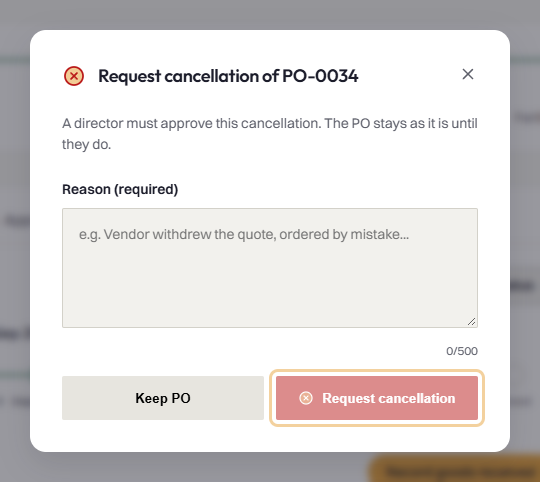
If circumstances change after a purchase order has been approved or issued (such as supplier insolvency or project cancellation), authorised users can request order cancellation:
- Open the purchase order in
Approved,PO Issued, orPayment Pendingstatus. - Click the More menu button in the top action area.
- Click Request PO cancellation (or Cancel PO if you are an authorised Director).
- In the cancellation dialog, enter a thorough explanation in the mandatory Reason (required) box.
- Click Request cancellation.
- The request routes to a Director for final cancellation approval.
[!NOTE] Cancellation Restrictions A purchase order cannot be cancelled if goods receipts or supplier payments have already been recorded against it. Any active goods receipts must be voided or resolved with Finance before a cancellation request can be processed.
Need more help? Email support@bilaro.my.