
Who can use RFQ
- Creating, editing, and sending RFQs: Finance, Manager, Director, Admin, and Global Admin roles.
- Viewing quotations and comparison charts: Finance, Manager, Director, Admin, and Global Admin roles.
- Awarding contracts: Finance, Manager, Admin, and Global Admin roles.
- Submitting quotations: External suppliers via secure links without needing a Bilaro account.
- Requesters and Receivers: Do not have access to the RFQ module in the sidebar.
How to create an RFQ
- Open RFQ from the sidebar.
- Click Create RFQ in the top-right corner.
- In Title, enter a clear name for your sourcing request.
- In Submission deadline, select the cut-off date for supplier submissions.
- In Description / guidelines for vendors, enter any specific delivery conditions or technical specifications.
- Under Line items, enter the item details:
- Enter the product or service name in Description.
- Enter the required quantity in Qty.
- Select the unit of measurement in UOM (for example, PCS, KG, M, or BOX).
- Click Add row to add more items as needed.
- Under Select vendors to invite, check the boxes next to the suppliers you want to request quotes from.
- Click Create RFQ. The new RFQ is saved in Draft status.
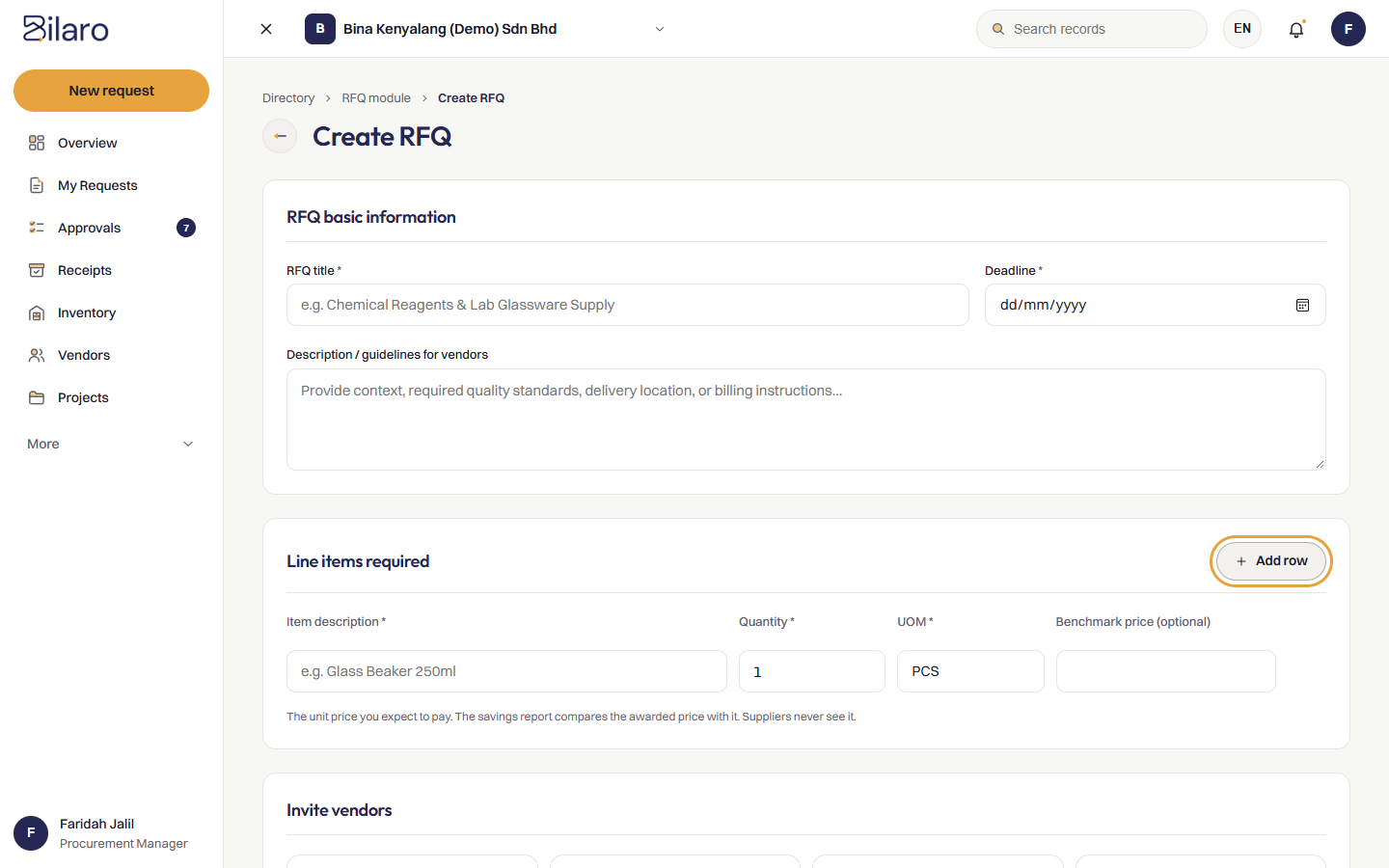
Tip: Make sure your intended suppliers are registered in the Vendor Directory before creating an RFQ so they appear in the vendor selection list.
How to send an RFQ to suppliers
- Open RFQ from the sidebar and select the draft RFQ.
- In the top-right header, click Send to vendors. The status changes from Draft to Sent.
- Click the Invited vendors tab to see your invited supplier list.
- To share the quotation form link directly, click Copy quote link next to any vendor name.
- To send the link via WhatsApp on mobile or desktop, click Send via WhatsApp to open a pre-formatted message addressed to the supplier's contact number.
- If you need to add more vendors later, click Add vendor, check the additional suppliers, and click Invite selected.
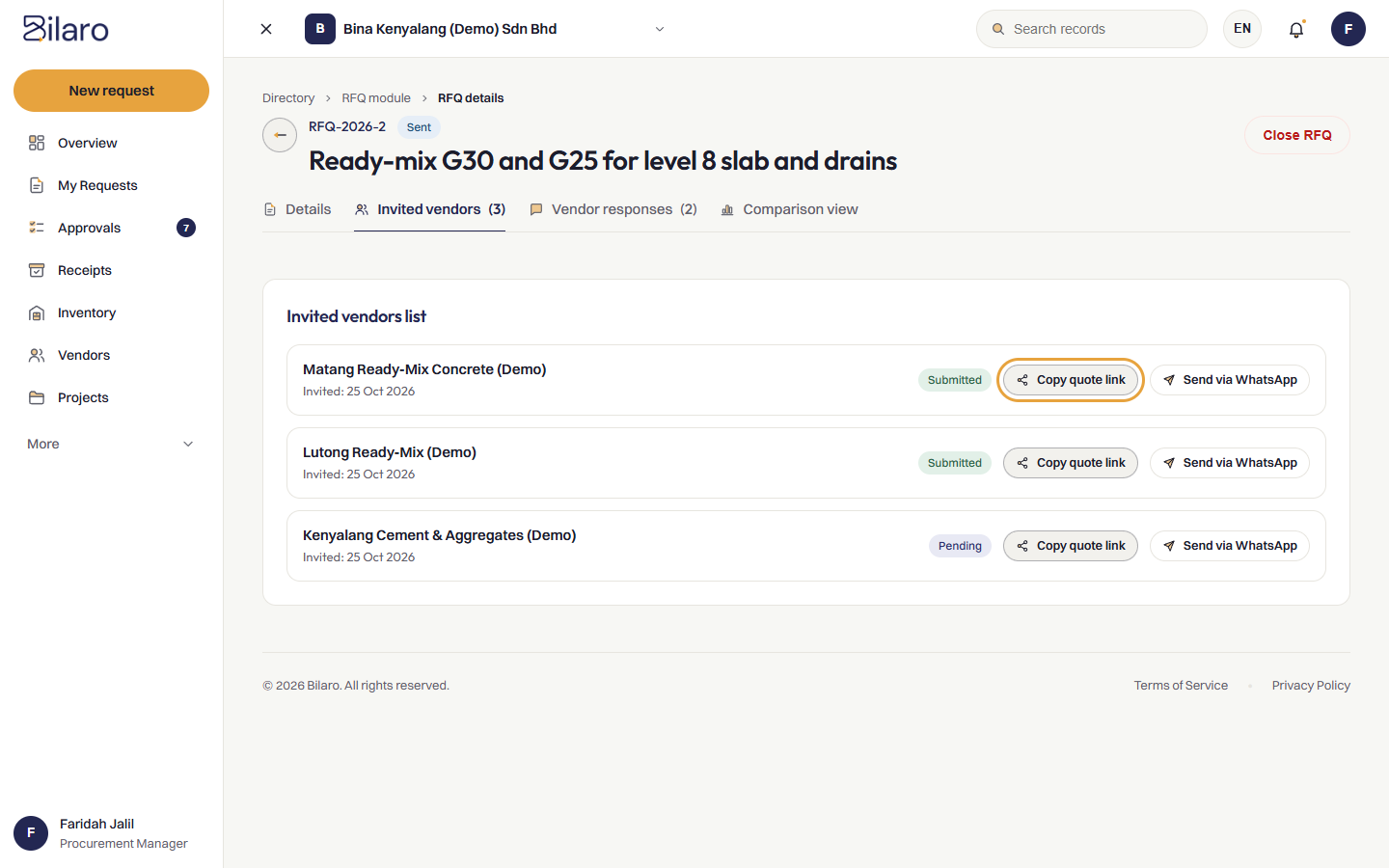
Note: Each invited vendor receives a unique, secure link. Suppliers only see their own quotation form and cannot see other invited vendors or competing prices.
How suppliers submit quotations
- The supplier opens their unique link in any web browser.
- The page displays your company name, the RFQ title, the submission deadline, and your instructions.
- For each requested line item, the supplier fills in:
- Unit price (RM): Quoted price per single unit.
- Lead time (days): Estimated delivery days after order confirmation.
- As numbers are entered, the portal automatically calculates line totals and the grand total quote amount.
- Under Terms (optional), the supplier enters commercial terms: Payment terms (such as
30 days from invoice date), Payment days (optional), and Delivery terms (such asDelivered to siteorEx-works). In Vendor notes / remarks, the supplier can enter additional warranty details or quotation validity periods. - The supplier clicks Submit quotation.
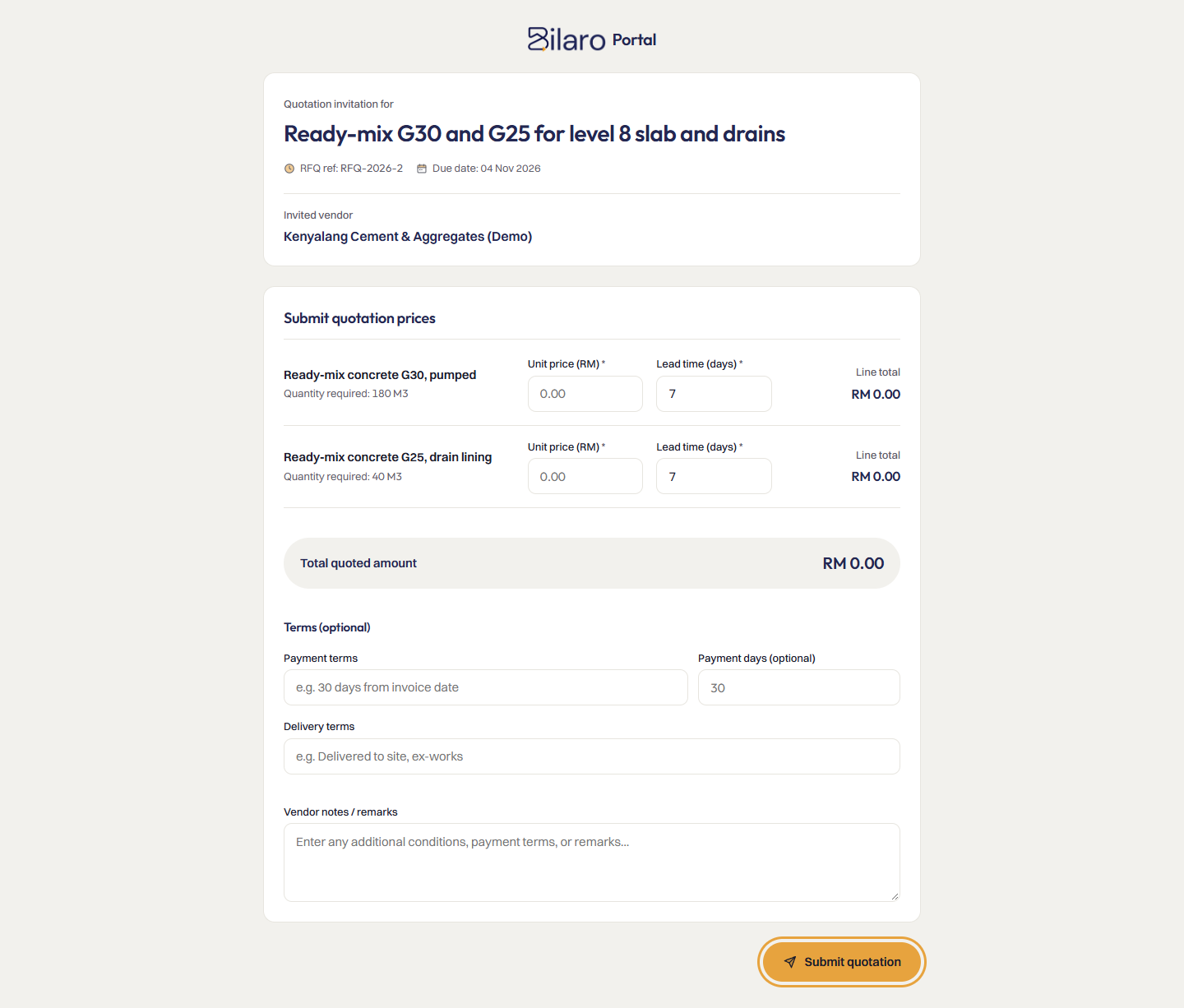
Note: Once submitted, the supplier receives a confirmation screen. If the supplier submits a quote while the RFQ is still in Draft status, Bilaro automatically moves the RFQ status to Sent.
How to view supplier responses
- Open RFQ from the sidebar.
- The RFQ list shows all sourcing projects with their status (Draft, Sent, Awarded, or Closed) and quotation submission counts.
- Click on the RFQ you want to review.
- Click the Vendor responses tab.
- The tab lists all suppliers who have submitted pricing, showing their total quotation amount, maximum lead time, and any supplier notes.
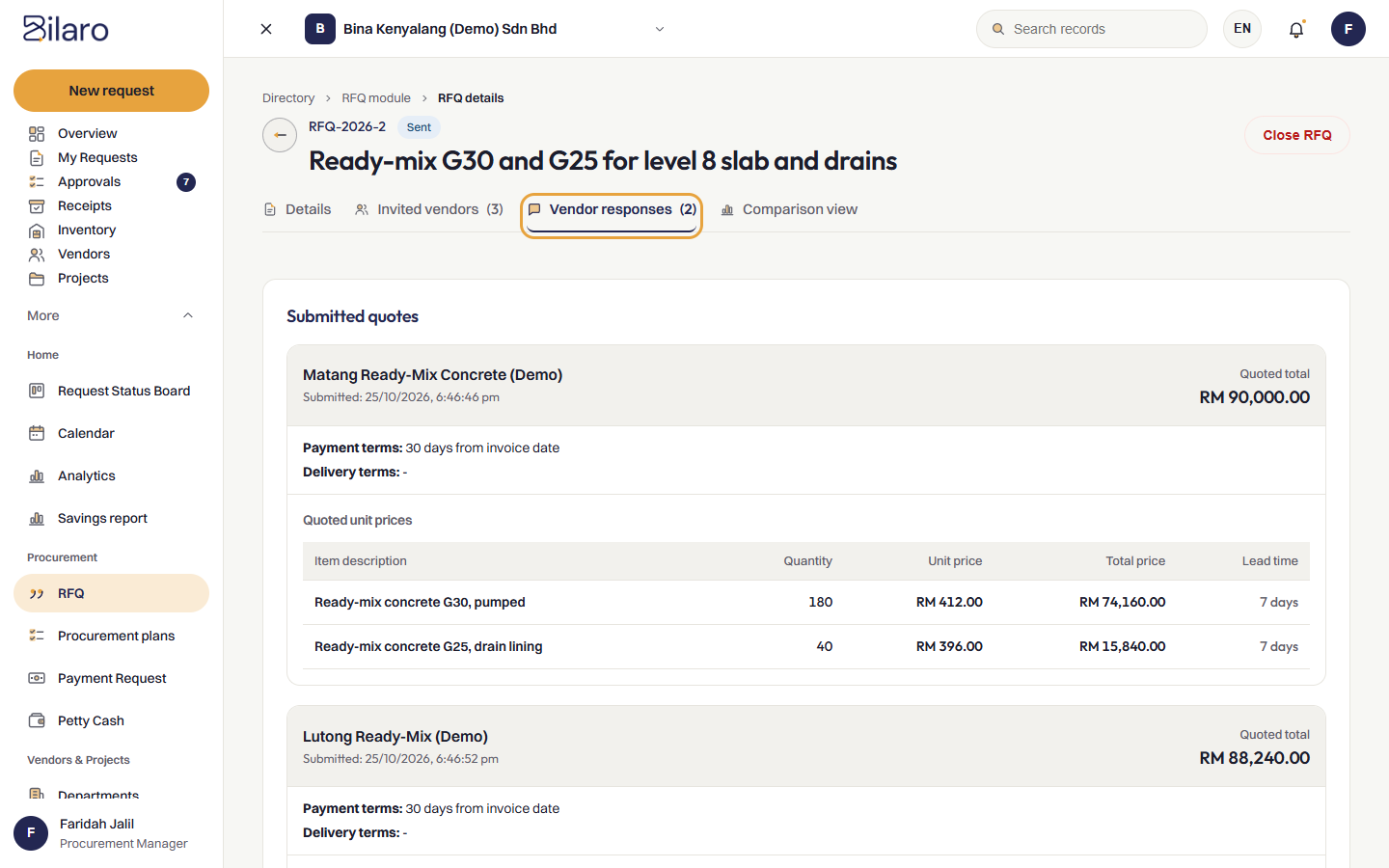
Tip: You can review individual quote submissions or immediately switch to the comparison tab for a structured price analysis.
How to compare quotations
- Open the RFQ details page and click the Comparison tab.
- Bilaro displays a side-by-side comparison matrix with requested items in the rows and competing suppliers in the columns.
- For each line item, the matrix shows the unit price, calculated total price, and stated lead time.
- Bilaro highlights the lowest price for each item row with an amber background.
- Review the Grand total amount row at the bottom to see total proposed costs across all items.
- Review the Maximum lead time row to check delivery timeframes.
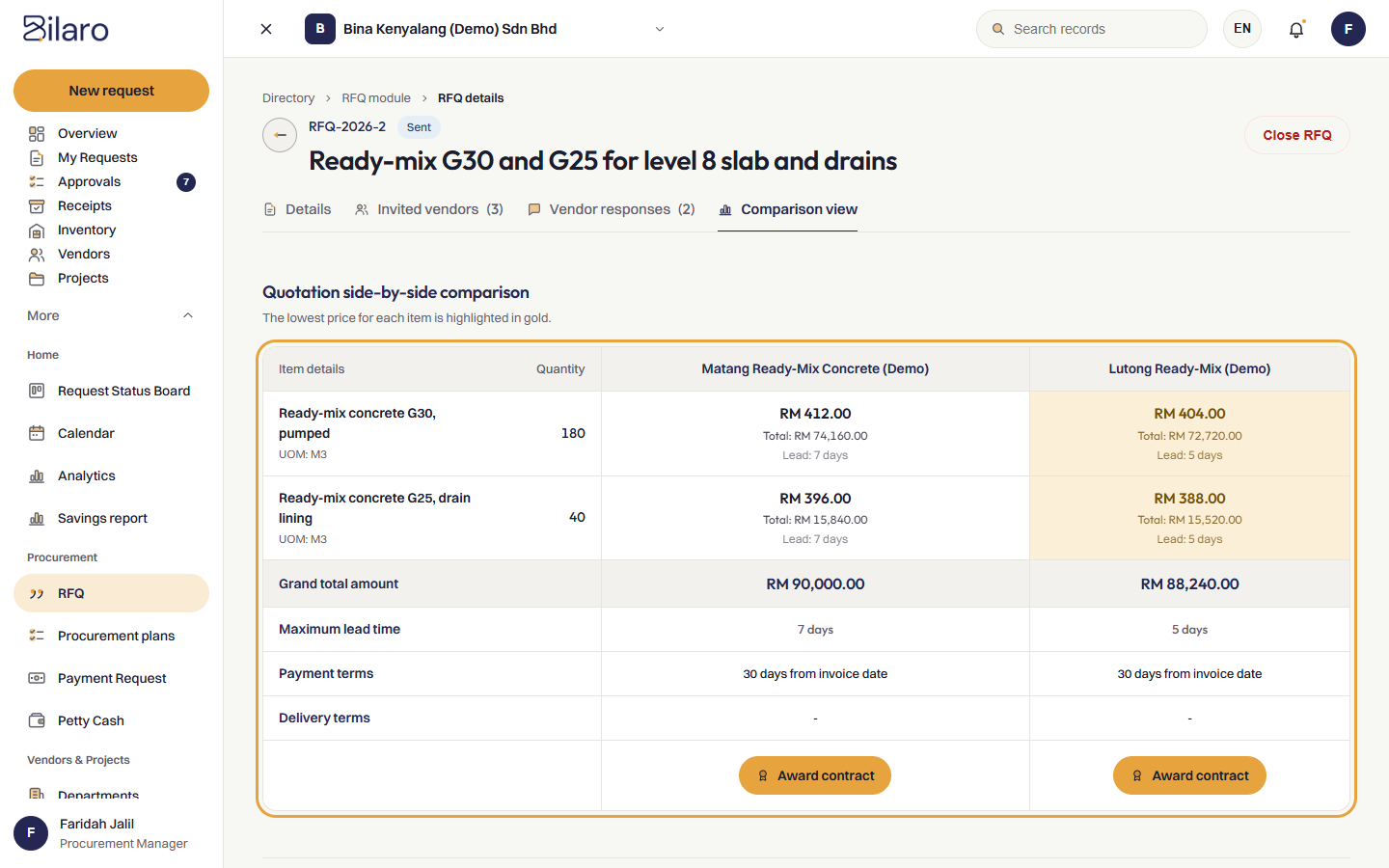
Tip: On mobile screens, the comparison displays as grouped item cards, highlighting the winning unit rate per item.
How payment and delivery terms appear in quote comparisons
- Open the RFQ details page and click the Comparison view tab.
- Below the item pricing rows, the comparison matrix displays dedicated rows for commercial conditions:
- Payment terms: Shows the supplier's credit terms and optional payment days (for example,
30 days from invoice date (30 days)orCash on delivery). - Delivery terms: Shows the supplier's shipping terms or handover conditions (for example,
Delivered to siteorEx-works).
- Payment terms: Shows the supplier's credit terms and optional payment days (for example,
- On mobile devices, payment terms and delivery terms display on each supplier's summary card under Grand totals and awards.
- To inspect individual supplier submissions, open the Vendor responses tab. Each submitted response displays Payment terms:, Delivery terms:, and Notes from vendor: above the quoted line items.
How to award a quotation and create a purchase request
- On the Comparison tab, review the final pricing and lead times.
- Beneath the column for your chosen supplier, click Award contract.
- A confirmation dialog appears asking you to confirm the award to that vendor. Click OK.
- Bilaro updates the RFQ status to Awarded.
- Bilaro automatically creates a new Purchase Request in Draft status titled
Awarded Purchase: <RFQ Title>. - The new purchase request pre-fills:
- The selected vendor name and vendor ID.
- The awarded line items with the supplier's quoted unit prices and quantities.
- A direct link back to the originating RFQ reference.
- Bilaro notifies the user who created the RFQ that the contract has been awarded and the purchase request is ready.
- Open Requests from the sidebar to review the draft purchase request, make any project or department allocations, and submit it into the approval workflow.
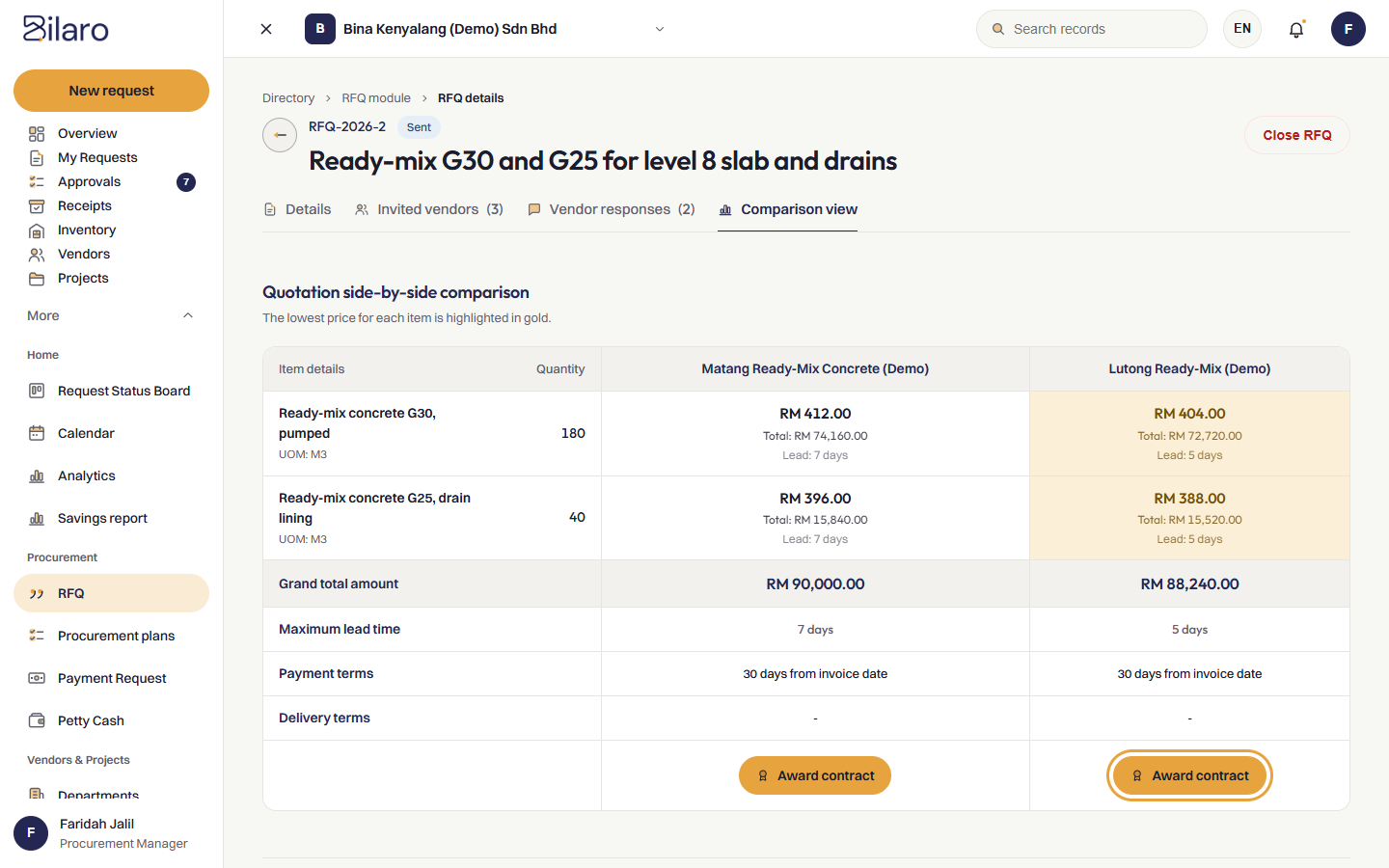
Note: Users with the Finance, Manager, Admin, or Global Admin role can award contracts. Directors can review comparison tables but do not see the award contract button unless they hold an administrative role. Note: If your organisation enforces a quotation policy requiring a minimum number of quotes or mandatory justification when selecting a higher-priced quote, an exception prompt requires you to select a reason before confirming the award. For details on setting thresholds and exception routing, see the Administrator Guide. Tip: If your holding organisation consolidates procurement across multiple subsidiaries into bulk tenders, see the Group Features Guide for group RFQs.
Need more help? Email support@bilaro.my.