
What is the group layer for?
The group layer connects multiple subsidiary companies under a single holding organisation so leadership can monitor consolidated expenditure, enforce governance, and secure bulk pricing. Rather than each subsidiary operating in complete isolation, group management can track committed spend across all business units, set group-wide approval thresholds on high-value purchases, and maintain a shared supplier compliance register. For example, a construction group managing two main contractor subsidiaries and a precast concrete batching plant can oversee combined material spend, require group director approval for any single order over RM 100,000, and consolidate steel reinforcement and bulk cement requisitions across all three companies into unified bulk tenders.
Who can access group features
Access to group features is controlled by dedicated group roles assigned to users who belong to the group:
- Group Admin: Can configure group approval rules, add and update centralised group suppliers and compliance documents, configure group sourcing settings, create and issue group RFQs, award group contracts, and invite or remove group members.
- Group approver: Can approve or reject group-level procurement requests, preview award allocations across subsidiaries, and review group RFQs before issue.
- Group viewer: Has read-only visibility over the group overview dashboard, spend charts, reports, the group supplier register, and the group sourcing consolidation pool.
Note: Subsidiary company roles (such as Requester, Manager, Director, Finance, Receiver, and Admin) apply when working inside individual companies. Group roles apply when working in the All companies (group) scope. Users can hold roles at both levels.
How to switch to the group view
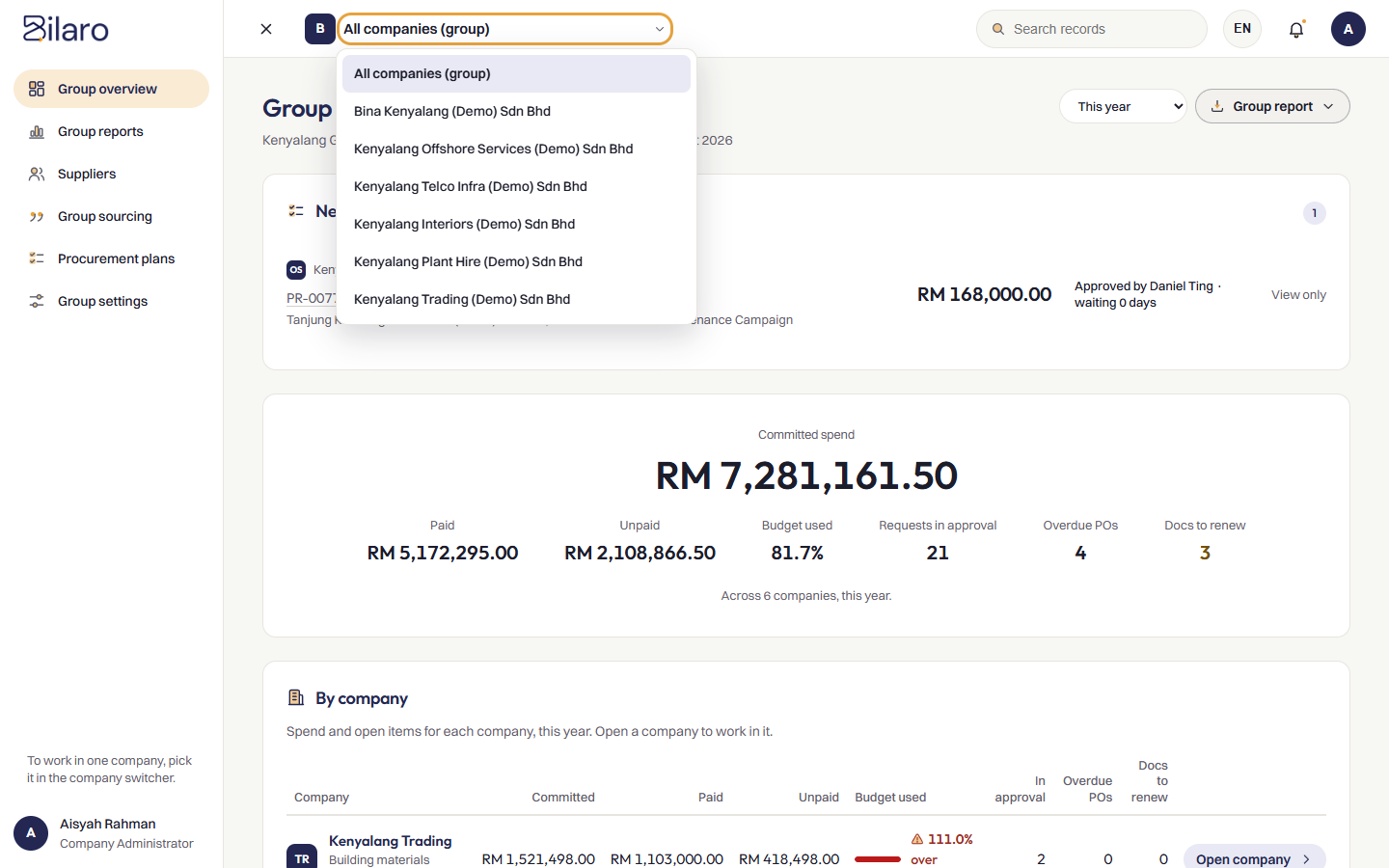
- Click the company switcher in the top bar.
- Select All companies (group) (or All companies in [Group Name]).
- The sidebar navigation changes to display group-specific items: Group overview, Group reports, Suppliers, Group sourcing (if enabled), and Group settings (for Group Admins).
- To return to working inside a single subsidiary at any time, click the company switcher and select that subsidiary company name.
How to view the Group overview dashboard
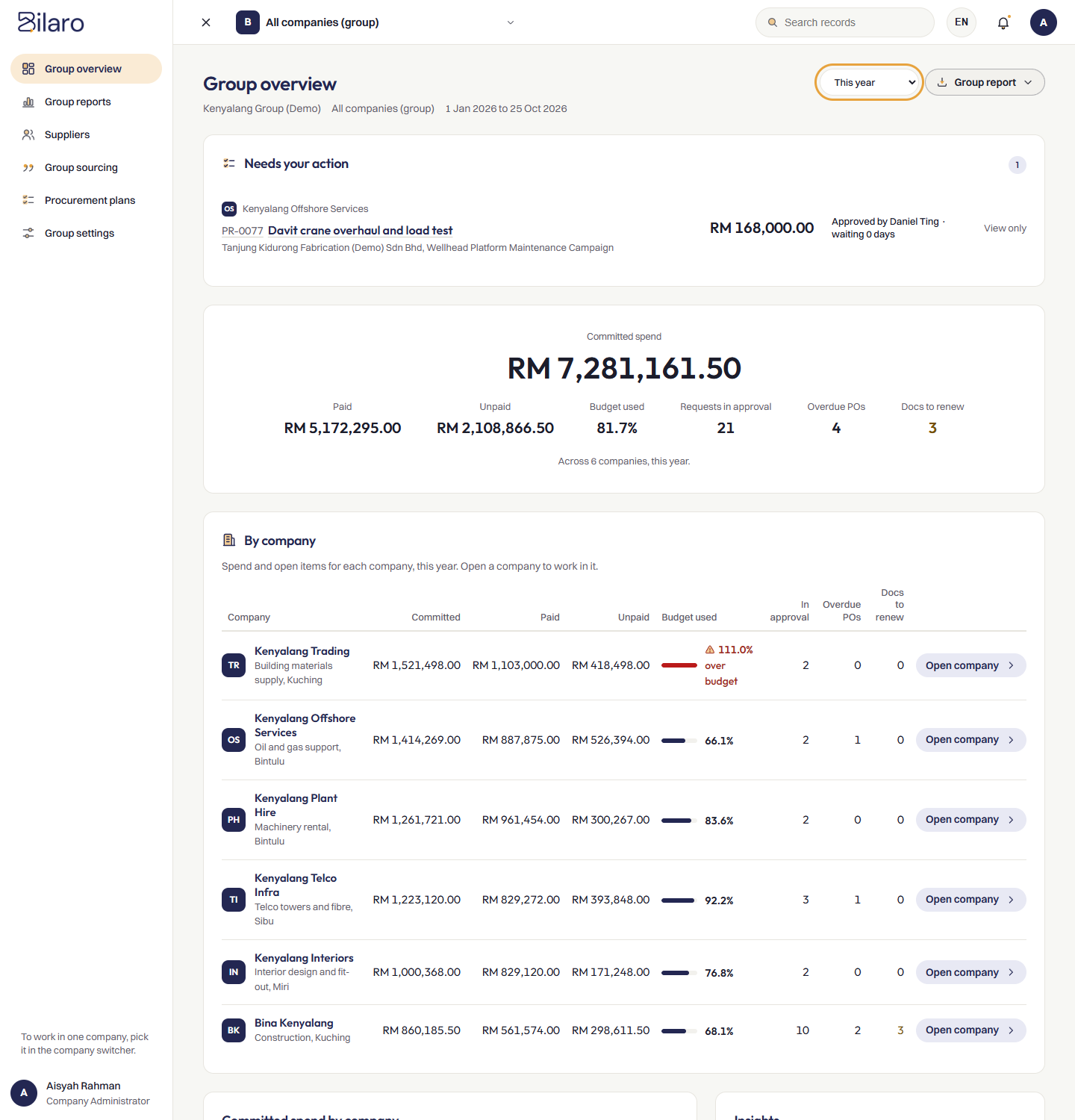
- Open Group overview from the sidebar.
- In the top right, choose your reporting period from the date range dropdown: This month, Last month, Last 3 months, or This year.
- Review the top summary cards:
- Committed spend: Total approved expenditure across all participating subsidiaries in the selected period.
- Paid: Total disbursements already recorded by subsidiary finance teams.
- Unpaid: Outstanding purchase order balances awaiting payment.
- Budget used: Combined budget consumption across subsidiaries that have department budgets set.
- Requests in approval: Total count of procurement requests currently undergoing company or group approval.
- Overdue POs: Purchase orders past their expected delivery date without completed goods receipts.
- Docs to renew: Supplier compliance documents that have expired or will expire within 30 days.
- Scroll to the By company section to view each subsidiary's committed spend, paid totals, budget utilisation, open approval counts, and document alerts. If you have user access to a subsidiary, click Open company to navigate directly into that company.
- Review the Committed spend by company bar chart to see expenditure share across the group.
- Under Insights, switch between the Top 10 projects tab to see group projects ranked by committed spend, and the Top suppliers tab to review supplier spend and how many group subsidiaries buy from each vendor.
- Check the Alerts strip at the bottom for urgent notifications regarding subsidiary budget overruns, stalled approvals, or expiring supplier compliance certificates.
Note: Companies with inactive subscriptions or currencies different from the group base currency are excluded from consolidated group totals and listed under the excluded summary note.
How to export group reports
- Open Group reports from the sidebar, or click Group report in the header of Group overview.
- Select a reporting period from the date range dropdown (This month, Last month, Last 3 months, This year, or Custom).
- If you select Custom, enter the start date in From and the end date in To.
- Click Group report to open the export options menu.
- Choose your export format:
- Summary (PDF): Generates a print-ready PDF document summarising spend, budgets, and open items by company.
- Summary (CSV): Downloads a spreadsheet with one summary row per subsidiary and consolidated group totals.
- All requests (CSV): Downloads a detailed CSV file containing every procurement request, line item, unit price, quantity, and status across all subsidiaries in the period.
- The file downloads directly to your device.
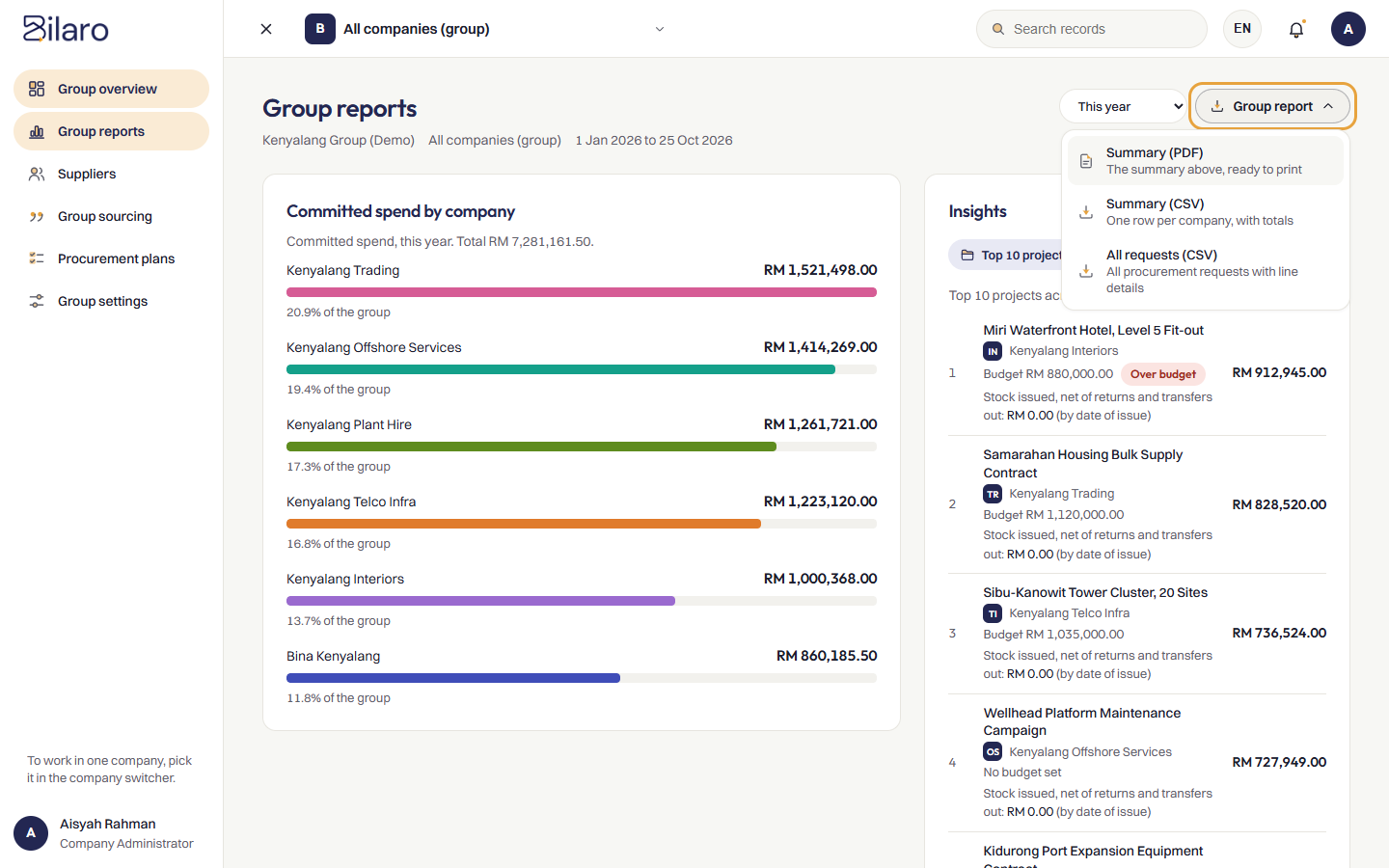
Tip: The Group reports page also displays interactive spend by company charts and top supplier insights for your selected date range so you can review figures before exporting.
How to manage group suppliers and compliance documents
- Open Suppliers from the sidebar.
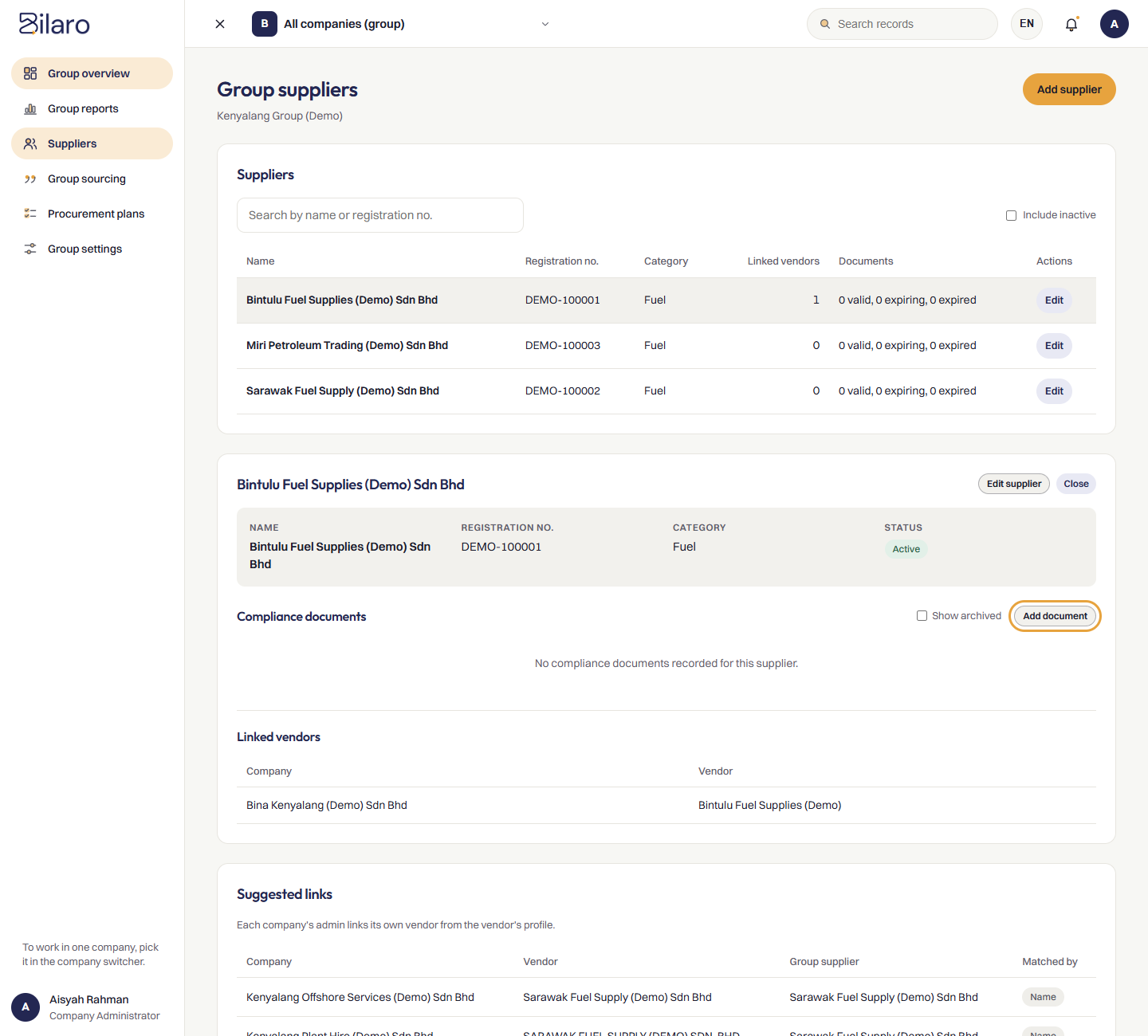
- Review the directory of centralised group suppliers, showing company names, registration numbers, categories, linked subsidiary vendors, compliance document counts, and status (Active or Inactive).
- Use the search input Search by name or registration no. to filter suppliers, or tick Include inactive to see deactivated entries.
- To register a new group supplier (Group Admin only), click Add supplier, enter the Supplier name, Registration no., and Category, then click Save.
- Click on any supplier row to view full details:
- Supplier details: Company registration details and active status. Click Edit supplier to make changes.
- Linked vendors: Lists vendors in subsidiaries that are mapped to this group master record.
- Suggested links: Displays automatic vendor matches across subsidiaries identified by matching SSM registration numbers or company names.
- Compliance documents: Lists statutory and industry certificates (such as CIDB, MOF, SPKK, or ST licences) with their document number, issuer, issue date, expiry date, and status (Valid, Expiring, Expired, or Archived).
- To upload a compliance certificate (Group Admin only), click Add document under Compliance documents.
- Select the Document type (for example, CIDB), enter the Document number, Issuer, Issue date, and optional Expiry date.
- Under Choose file (PDF, PNG, JPG up to 10 MB), attach the certificate file.
- Click Save document.
- To update an existing certificate, click Replace file to upload a new document, or click Archive to retire an old certificate while preserving historical records.
Note: Only Group Admins can add or edit group suppliers and compliance documents. Group Approvers and Group Viewers have read-only access. Each subsidiary's Admin links its local vendor profile to the group supplier master from the company-level Vendor Directory.
How to configure group settings and approval rules
- Open Group settings from the sidebar (available to Group Admins).
- Under Approval rules, review the active thresholds that require procurement requests in subsidiaries to undergo group-level approval.
- To add an approval rule, locate the New approval rule form:
- In Category, enter a specific spending category (such as
Building materials,Plant Hire, orIT), or leave it blank to apply across All categories. - In Threshold (including SST), enter the minimum total amount in RM that triggers group approval.
- Click Add rule.
- In Category, enter a specific spending category (such as
- To change an existing threshold, click Edit threshold next to the rule, enter the updated amount, and click Save.
- To temporarily pause a rule without deleting it, click Deactivate. Click Activate to resume enforcement.
- Under Stalled approval limit, review the waiting threshold in days. Pending approvals that remain undecided longer than this limit are flagged with a Stalled badge on dashboards and alerts.
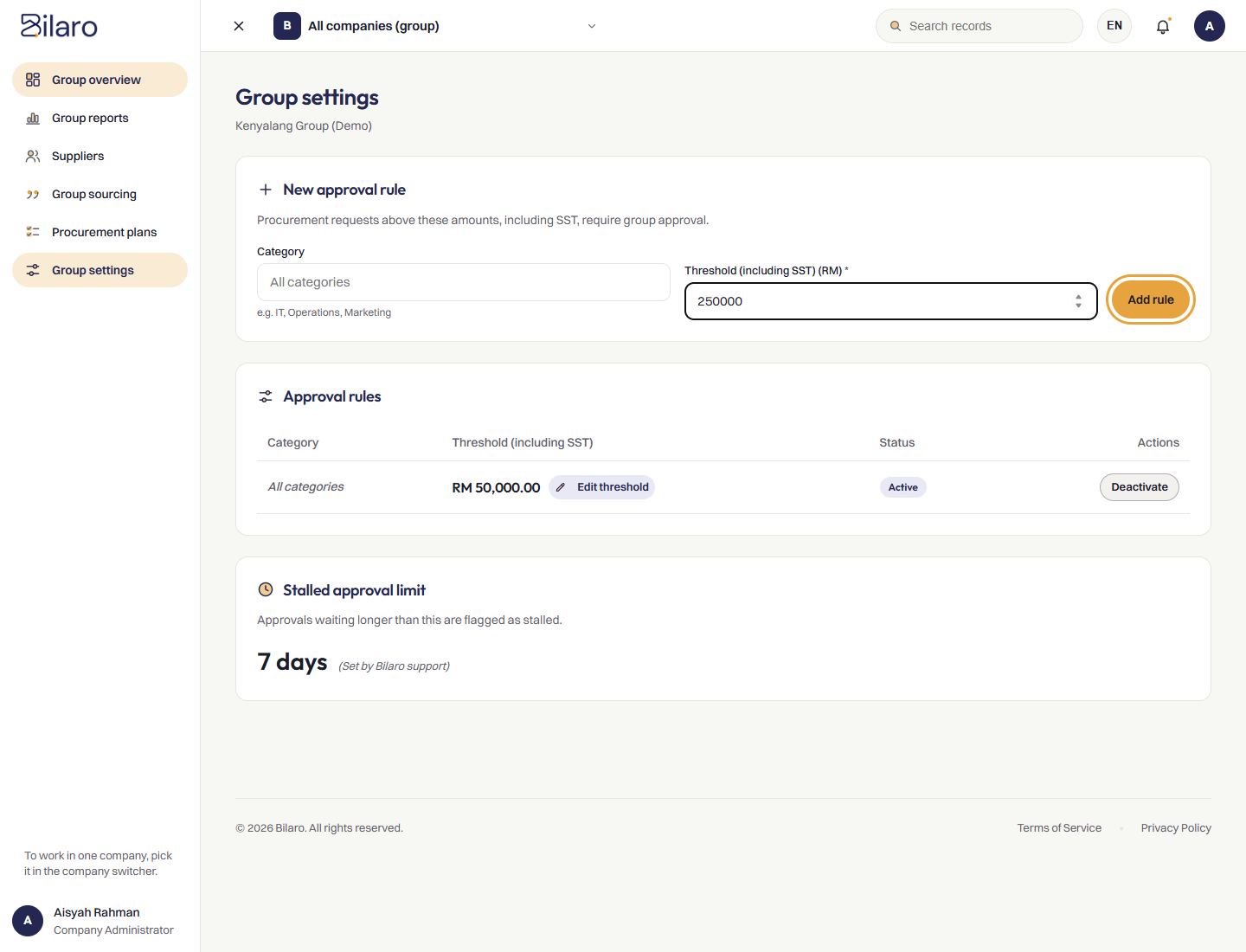
Note: Group approval thresholds evaluate the grand total amount including SST. The stalled approval limit is configured by Bilaro support.
How to review and decide on group approvals
- Open Group overview from the sidebar and check the Needs your action card, or open the link provided in your email notification.
- The list shows all procurement requests from subsidiaries that have cleared company-level approvals (Manager and Director tiers) and exceed the active group approval threshold.
- Review the request details on the card: subsidiary company badge, PR reference number, title, vendor, project, total amount, and days waiting.
- Click on the request row or Open [PR Number] to inspect the full request details:
- Itemised breakdown with quantities, UOM, and unit prices under Line items.
- Attached vendor quotations, bills, and specifications under Attachments.
- Company-level approval history and audit logs under Group approval history and Audit trail.
- To approve the request (Group Admin or Group Approver), click Approve, enter an optional comment in Note (optional), and click Approve. The request moves to Approved status, and the subsidiary's Finance team is notified to issue the purchase order.
- To reject the request, click Reject, enter the required explanation in Reason (sent to the requester), and click Reject. The request returns to Draft status in the subsidiary, and the requester is notified of the rejection reason.
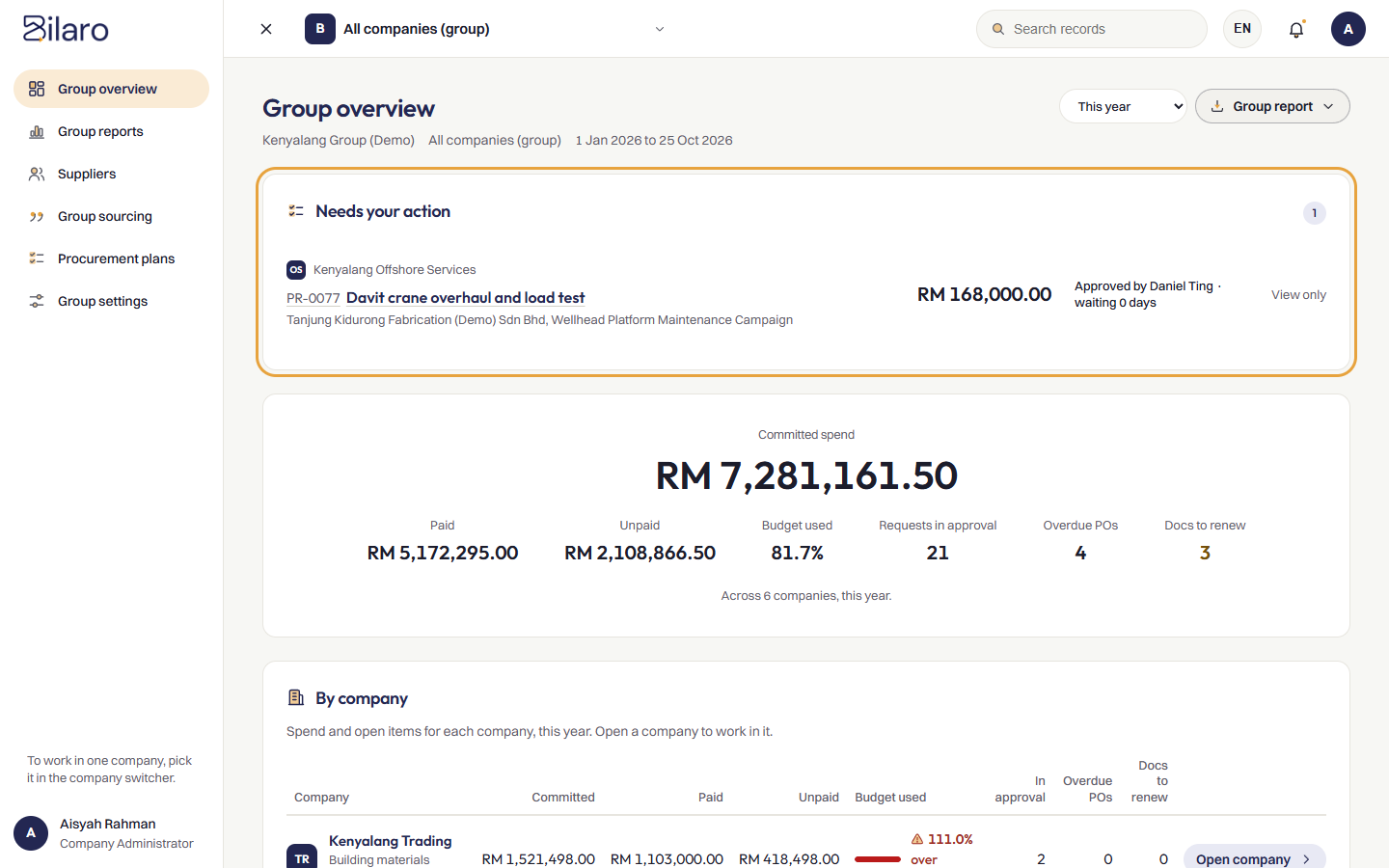
Note: Group approvals enforce the four-eyes principle. You cannot approve or reject a request if you created it, or if you already approved it as a Manager or Director at the company level. In those cases, Bilaro displays Your own request or You approved this at company level, and another Group Approver or Group Admin must make the decision.
How to pool items into a group RFQ
- Open Group sourcing from the sidebar. (If you don't see Group sourcing in the sidebar, your group doesn't have this module; ask your Admin or Bilaro support.)
- Under Consolidation pool, review items from submitted purchase requests across participating group subsidiaries.
- Bilaro automatically groups identical item descriptions and units of measurement, displaying the combined total quantity and individual quantities per subsidiary.
- Select the checkboxes next to the item groups you want to consolidate into a bulk quotation.
- Click Create group RFQ.
- In the Create group RFQ modal, fill in:
- Title: Enter a clear name for your sourcing exercise (for example,
Bulk Portland Cement Q4). - Deadline: Select the quotation submission cut-off date.
- Description: Enter any delivery guidelines, site locations, or specifications for suppliers.
- Title: Enter a clear name for your sourcing exercise (for example,
- Click Create group RFQ. The new RFQ is saved in Draft status and opens in the RFQ details screen.
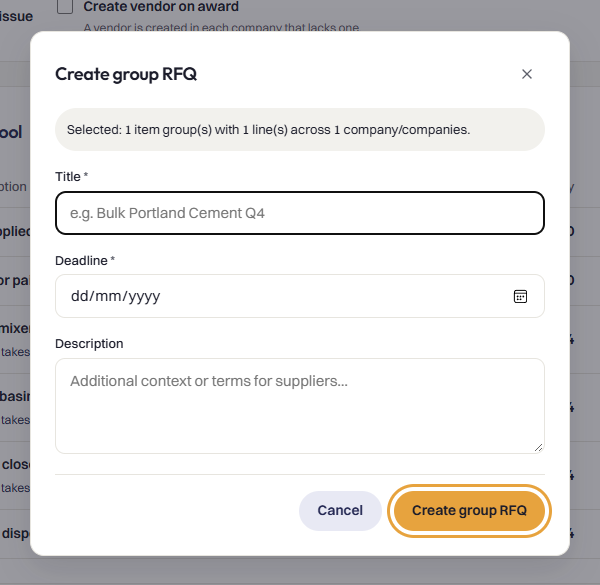
Note: Group sourcing pools whole purchase requests. When you select an item line, any other line items belonging to the same purchase request are included into the group RFQ. While pooled, the subsidiary source requests are held in Submitted status and cannot be approved, edited, or ordered locally.
How to invite suppliers and manage group RFQ quotes
- In Group sourcing, open your RFQ from the Group RFQs list.
- In the Items tab, review the Consolidated items and Pooled source lines. If you need to return a purchase request to its subsidiary, click Release on that line, enter a Release reason, and confirm. Releasing a line returns the entire source request back to the company.
- Click the Suppliers and quotes tab.
- Click Invite supplier, select an active supplier from the Select group supplier dropdown, and click Invite supplier. Repeat to invite competing suppliers.
- If group sourcing settings require review before issuing (Review before issue is turned on), a Group Approver or Group Admin clicks Review, enters any conditions in Review note, and clicks Review. The status changes to Reviewed.
- When ready, the Group Admin clicks Issue and confirms in the dialog. The RFQ status updates to Issued.
- When an invited supplier submits their pricing, click Enter quote on that supplier's row.
- Enter the supplier's Unit price (RM) and Lead time (days) for each line item.
- Enter optional Payment terms (e.g.
30 days net), Delivery terms (e.g.Delivered to site), and Notes. - Click Save quote. The supplier's status updates to Submitted.
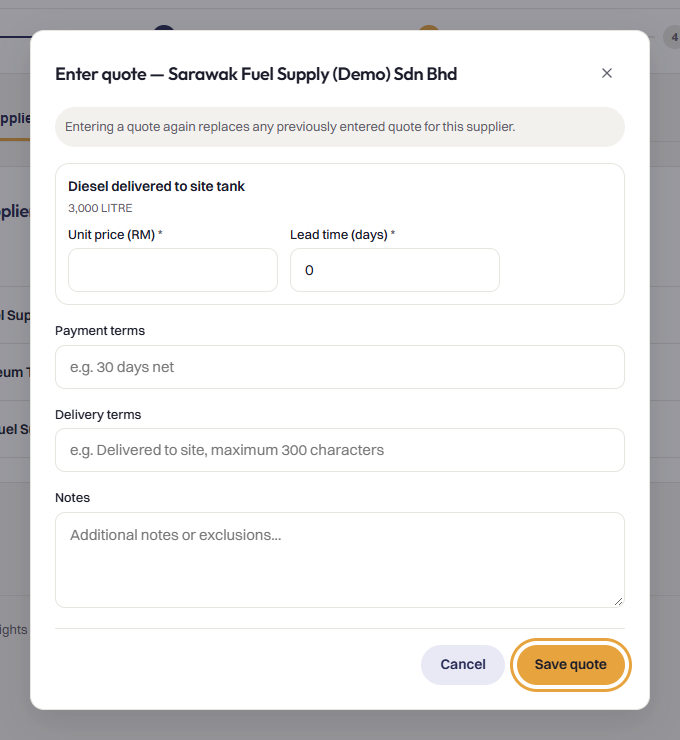
Tip: If an invited supplier declines to bid, click Mark declined to record their refusal without removing them from your records. If a supplier amends their bid, click Enter quote again to replace the earlier quotation.
How to compare quotations and award a group RFQ
- On the group RFQ details page, click the Compare tab.
- Inspect the side-by-side comparison matrix showing unit prices, extended totals, delivery lead times, payment terms, and delivery conditions across all submitting suppliers.
- Bilaro highlights the lowest unit price per item and the lowest total cost.
- When quotes are complete, click Close quotes in the header if you want to prevent further quote edits, or proceed directly while the RFQ is in Issued or Closed status.
- Click the Award tab (accessible to Group Admins and Group Approvers).
- Pick your preferred supplier from the list of quotes (each shows its total) to preview the award allocation across companies.
- Review each subsidiary's breakdown card:
- Check the company's allocated item quantities, unit prices, line totals, applicable SST percentage, and total cost.
- Verify Vendor status: Shows Linked vendor: [Vendor Name] if the subsidiary already has a linked vendor, or A vendor will be created from the group supplier if automatic vendor creation is enabled in group sourcing settings. If it shows No linked vendor, that company's Admin must link its vendor profile before the award can proceed.
- Review the subsidiary's local Approval route (for example, whether the created purchase request will require Manager or Director approval based on company thresholds).
- Check for any Budget warnings or blockers.
- Click Award group RFQ.
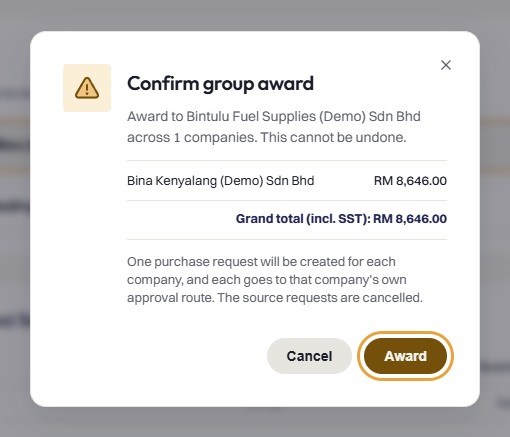
- In the confirmation dialog, review the grand total and number of purchase requests to be created. If group or company policy requires justification, select one or more reasons from the award reason picker and enter any required notes.
- Click Award.
- Bilaro updates the RFQ status to Awarded, cancels the original pooled source requests in each subsidiary, and automatically creates one new standard purchase request in each participating subsidiary with the supplier's awarded prices and items.
Note: Only a Group Admin can execute the final award. After the award, each subsidiary approves and orders its purchase request through its own standard company approval route. Once approved, each subsidiary's Finance team generates and issues its own Purchase Order to the supplier. For details on issuing purchase orders and recording disbursements, see the Finance Guide. For standard single-company sourcing, see the RFQ Guide.
Need more help? Email support@bilaro.my.