
How to view requests awaiting your approval
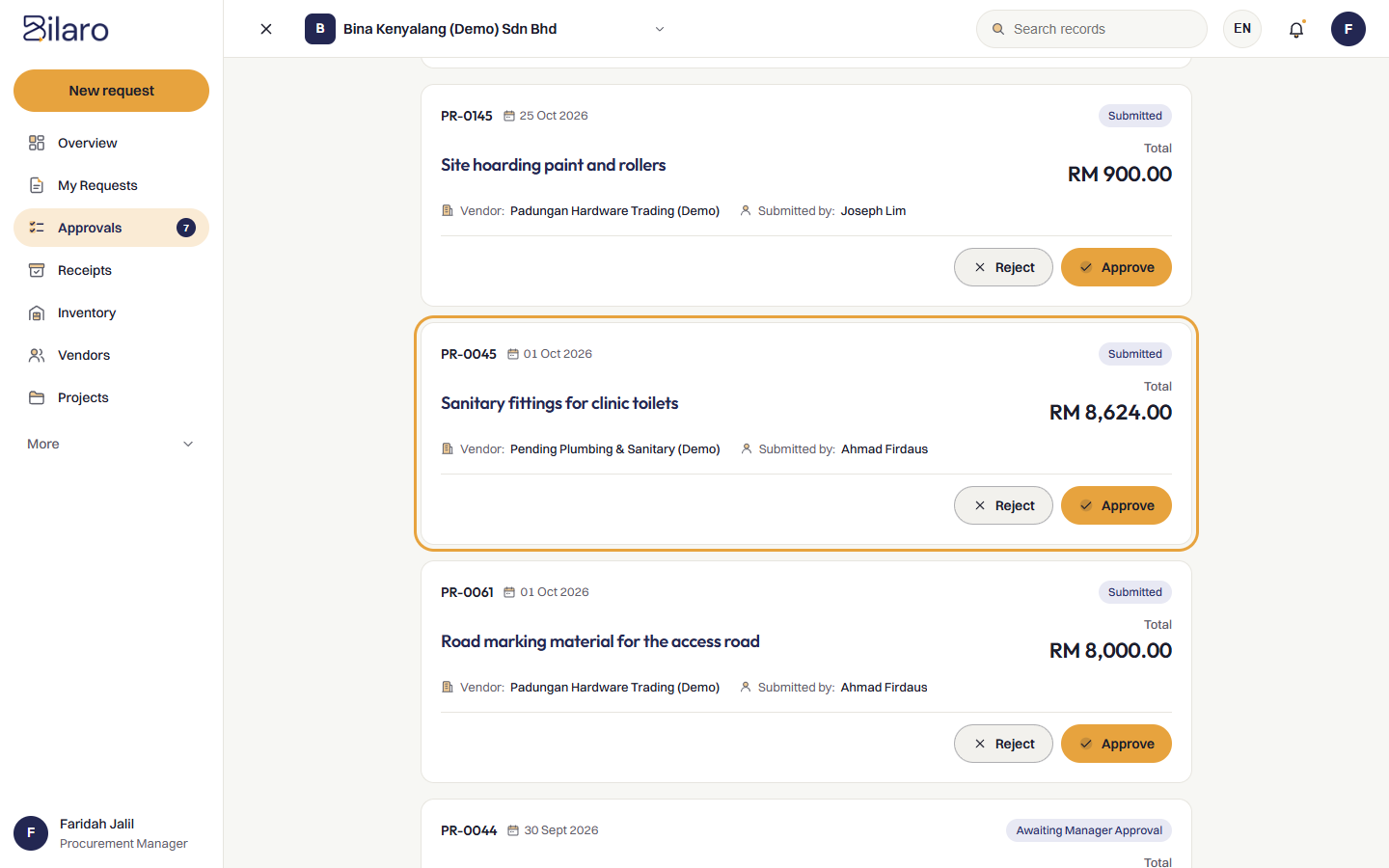
- Sign in to Bilaro with your Manager or Director credentials.
- Locate requests requiring your review using either of two methods:
- On the Overview dashboard, check the Needs your action card to view the count and quick list of requests awaiting your review.
- Click To do in the left-hand sidebar navigation and look at the Approve section.
- Review the pending list in the Approve section: each row shows the PR reference, title, vendor, date and total. Click Review to open the request and approve or return it there.
- If you are a Director, the queue displays requests waiting for your approval. If your company has enabled Always: list new requests as well as those waiting for a Director in Company Settings, you will see new submissions alongside requests awaiting Director review; otherwise, new requests appear only when there is no active Manager or after Manager review.
- To focus specifically on requests with quotation compliance issues, tick the Exceptions only checkbox above the section.
How to review request details and quotations
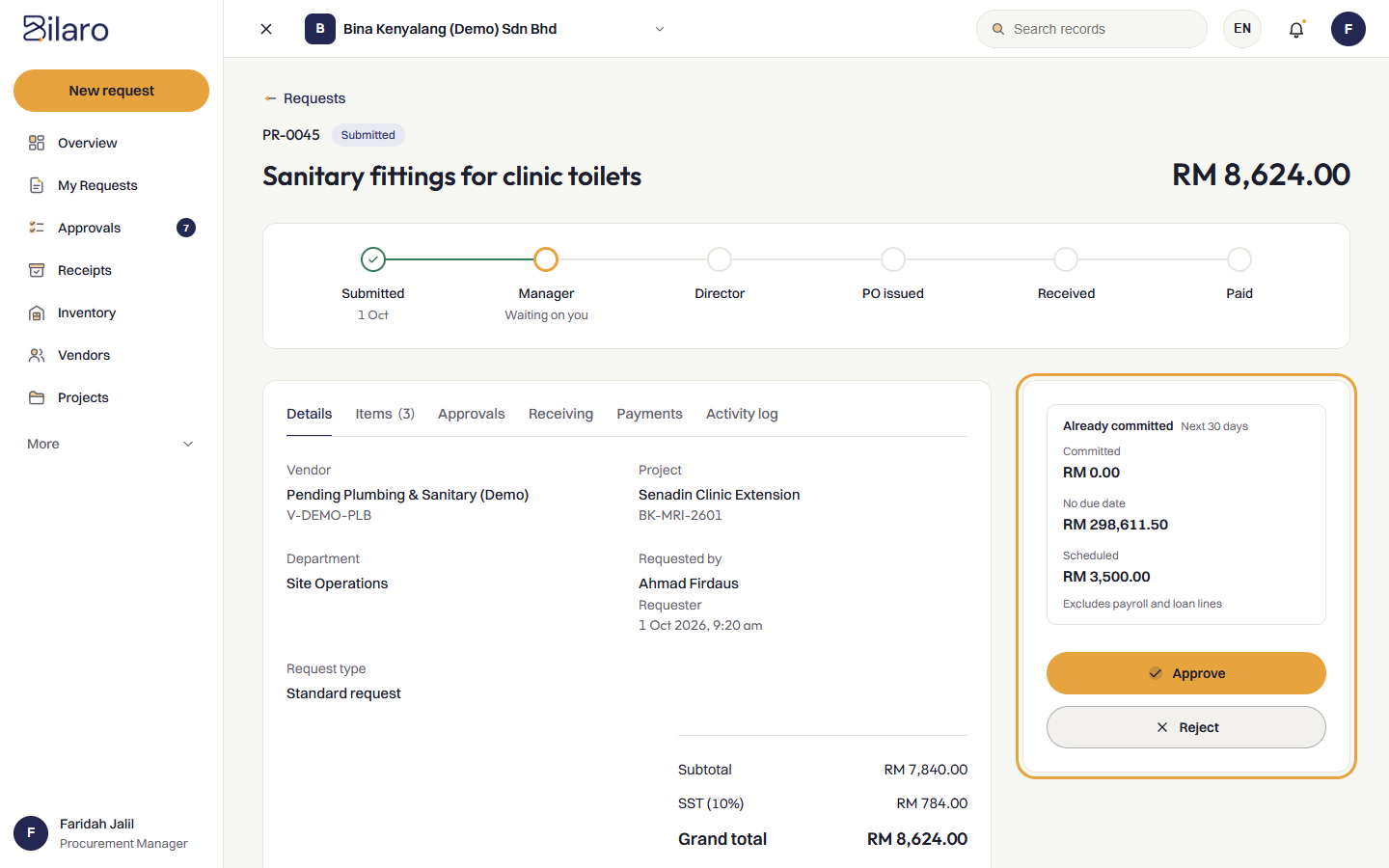
Before taking action, review all key sections of the request:
- Request details header:
- Check the Request Title, Requested by user, Department, and Project allocation.
- Requested items and financial summary:
- Review each line item in the Requested Items table: description, quantity, unit price, and SST percentage.
- Verify the calculated Subtotal, SST amount, and Grand Total.
- Budget warnings and policy alerts:
- If a request causes a department or project budget to exceed its allocated cap, Bilaro displays a prominent warning banner labelled Over budget.
- If strict budget enforcement is configured in your company settings, approval may be blocked until the budget allocation is adjusted.
- Quotations and attachments:
- Click View & Download Quotation or inspect the embedded document preview to review the supplier's formal quotation.
- For higher-value requests where multiple quotations were required, compare submitted quotations using the supplier price ranking display.
How to approve a request
- On the request review page, locate the Review Request action card on the right-hand side (or the sticky bottom action bar on mobile devices).
- Click Approve.
- How Bilaro routes the approval depends on the amount and company rules:
- Under company threshold (Manager review): If the total amount is less than or equal to the company threshold (default: RM 5,000 including SST), a Manager approval moves the request directly to Approved status, making it ready for PO issuance.
- Over company threshold (Manager review): If the total amount exceeds the manager approval threshold, Manager approval advances the request to Awaiting Director Approval.
- Director review: When a Director approves a request awaiting Director approval, the request completes its approval workflow and advances to Approved.
- Solo-Director fastpath: If your organisation operates with Directors only and no active Manager role is configured, a Director can approve a Submitted request in a single step directly to Approved.
How to reject a request with feedback
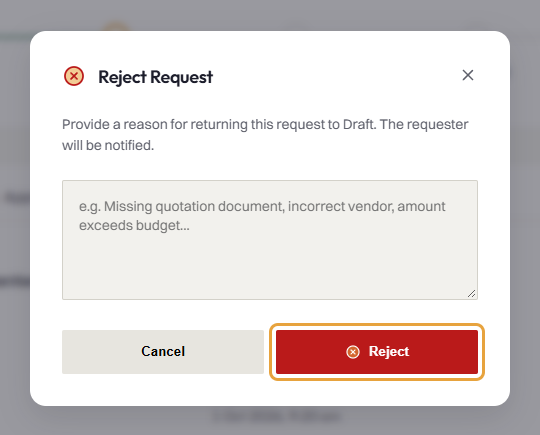
If a request has inaccurate details, unapproved pricing, insufficient quotations, or missing justification, return it to the requester for correction:
- In the Review Request action card, click Reject.
- In the Reject Request modal:
- In the reason for rejection text box, enter a clear, specific explanation explaining why the request is being returned (for example, "Please obtain two additional competitive quotations" or "Incorrect project code assigned").
- Entering a rejection reason is mandatory so the requester understands what to amend.
- Click Reject.
- The request returns immediately to Draft status. Bilaro sends an email notification and an in-app alert to the requester containing your feedback.
How quotation policy exceptions appear to an approver
- Open To do from the sidebar. In the Approve section, requests submitted with fewer quotes than required by company policy display an amber Exception badge.
- Tick the Exceptions only checkbox above the section to filter the list and review only requests with quotation exceptions.
- On the request row (or in the decision card on the request details page), an amber alert box displays:
- Quotation exception with the reason type (such as Sole source, Emergency, Framework contract, or Other).
- The requester's justification note explaining why competitive quotes could not be obtained.
- Before you can approve the request, you must tick the mandatory acknowledgement checkbox: I have read the exception reason.
- Bilaro keeps the Approve button disabled until this acknowledgement is ticked. Once ticked, click Approve to proceed.
How Bill of Quantities (BQ) overruns appear to an approver
- When a purchase request line item is allocated to a Bill of Quantities item and causes total project commitments to exceed that item's contract allowance, Bilaro displays an amber warning banner titled Over the BQ allowance.
- The banner identifies the BQ item number, the amount in this request, the remaining allowance, and the exact amount over allowance.
- Check the company BQ overrun policy configured under Company Settings:
- If the policy is set to Warn, approvers see the warning banner during review and can approve the request normally; the overrun is recorded in the audit trail.
- If the policy is set to Director approval, Bilaro automatically routes the request to a Director for sign-off, even if the total request value is below the company's normal Director approval threshold.
- For details on how BQ allowances are calculated and how unit conversions work, see the Project Costs Guide.
Understanding the approval hierarchy and thresholds
Bilaro manages multi-level approval hierarchies configured in your organisation settings:
- Tier 1 (Manager Approval): Reviews initial submissions within their assigned department or cost centre. Managers can grant final approval for orders up to the company threshold (default: RM 5,000).
- Tier 2 (Director Approval): Required for all expenditure exceeding the manager threshold, or for requests that trigger policy escalations (such as BQ item overruns or quotation policy exceptions set to Director sign-off).
- Director Queue Visibility: Admins configure whether new submissions appear in the Director queue immediately alongside Manager queues, or only after Manager sign-off / when no Manager exists. Directors also review administrative items under Director approvals (including PO cancellations, quotation policy changes, and user deletions).
- Group Approval: In organisations with multi-company shared services, requests meeting specific group-level thresholds go to joint group authority review before release.
Self-approval restrictions and four-eyes policy
Bilaro strictly enforces segregation of duties to ensure internal financial controls:
- Strict Self-Approval Restriction: You cannot approve your own procurement requests. If you hold a Manager or Director role and raise a purchase request yourself, the system automatically omits that request from your approval queue. Furthermore, if you attempt to submit an approval action on your own request, the server returns an access error: "You cannot approve your own request". Another authorised Manager or Director must review and approve your submission.
- PO Issuance Segregation (Four-Eyes Principle): By default, the person who approved a procurement request is prevented from issuing the final Purchase Order (
po_issue_four_eyessetting). Finance personnel or another system administrator must perform the PO issuance step.
Need more help? Email support@bilaro.my.