How to sign in to Bilaro
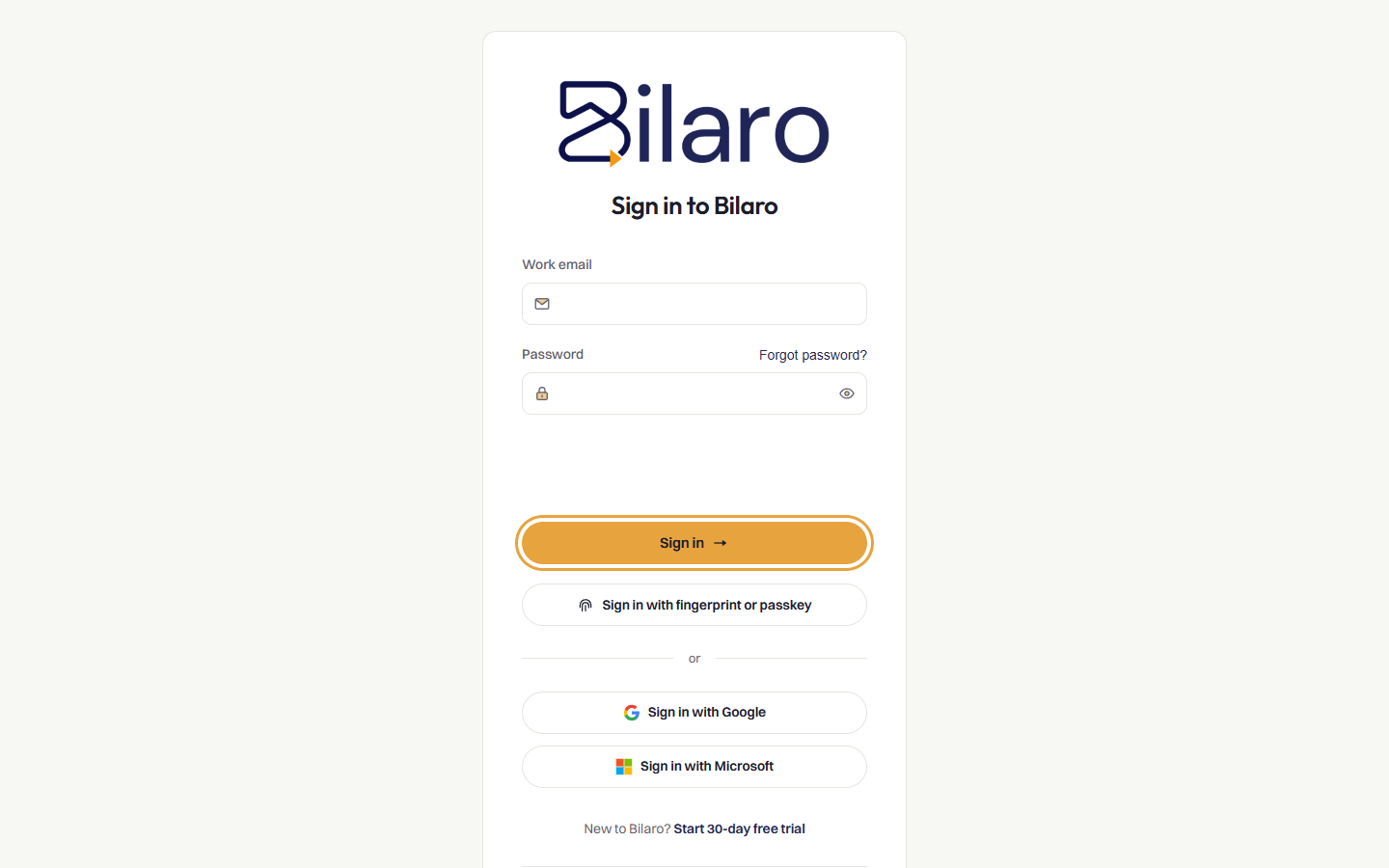
- Open your web browser and navigate to your organisation's Bilaro web address.
- On the sign-in page, enter your registered email address in the Work email field.
- Enter your account password in the Password field.
- Click Sign in.
Alternative sign-in options:
- To sign in with your corporate Google workspace, click Sign in with Google.
- To sign in with your corporate Microsoft account, click Sign in with Microsoft.
- If you have registered a biometric passkey or security key on your device, click Sign in with fingerprint or passkey.
How to set your password for the first time
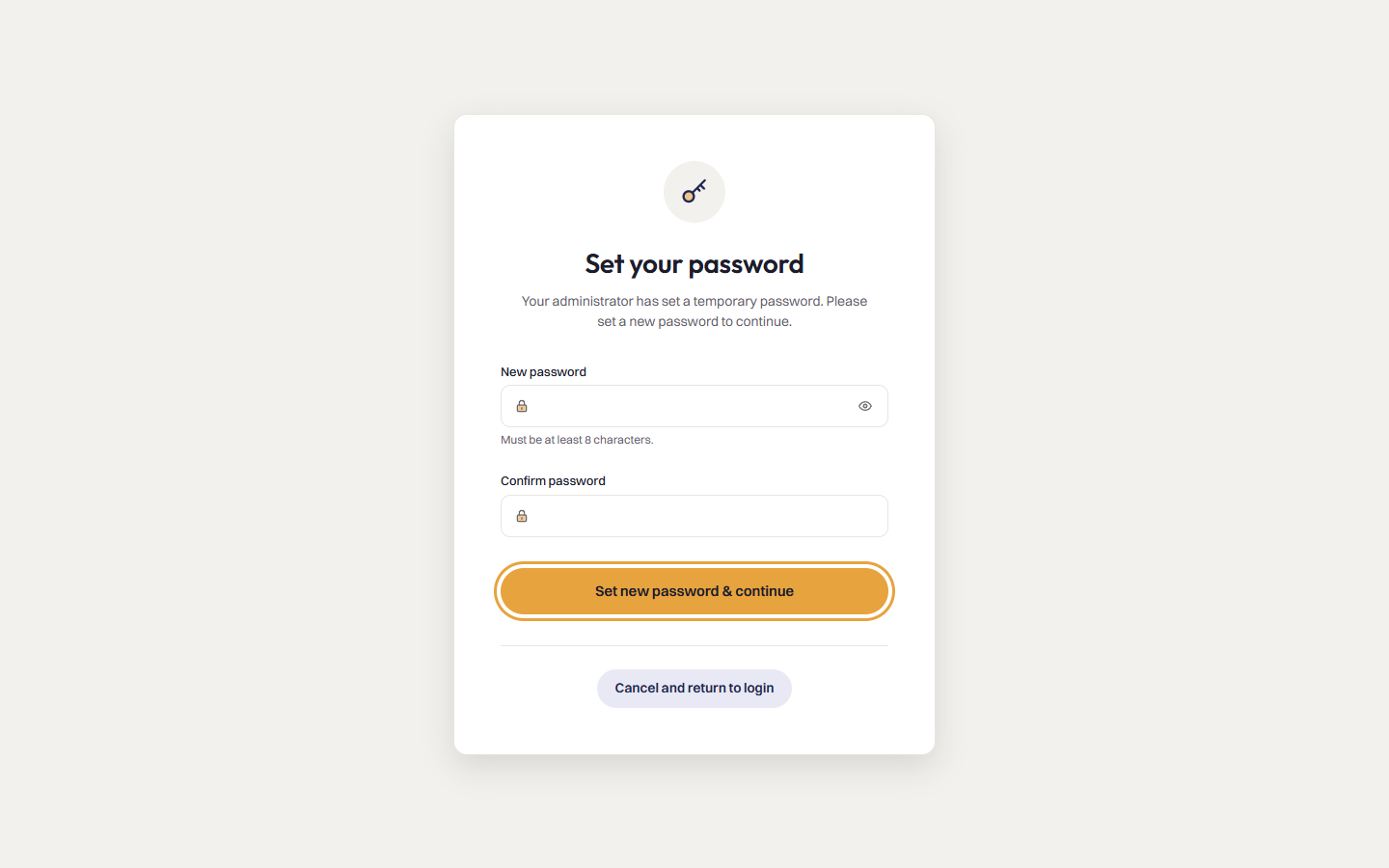
When an administrator invites you to Bilaro, you receive an invitation email containing a secure account setup link.
- Open the invitation email and click the setup link.
- In the New password field, enter your desired password. Your password must be at least 8 characters long and contain both letters and numbers.
- In the Confirm password field, enter the exact same password again.
- Click Set new password & continue to activate your account and open your dashboard.
How to reset a forgotten password
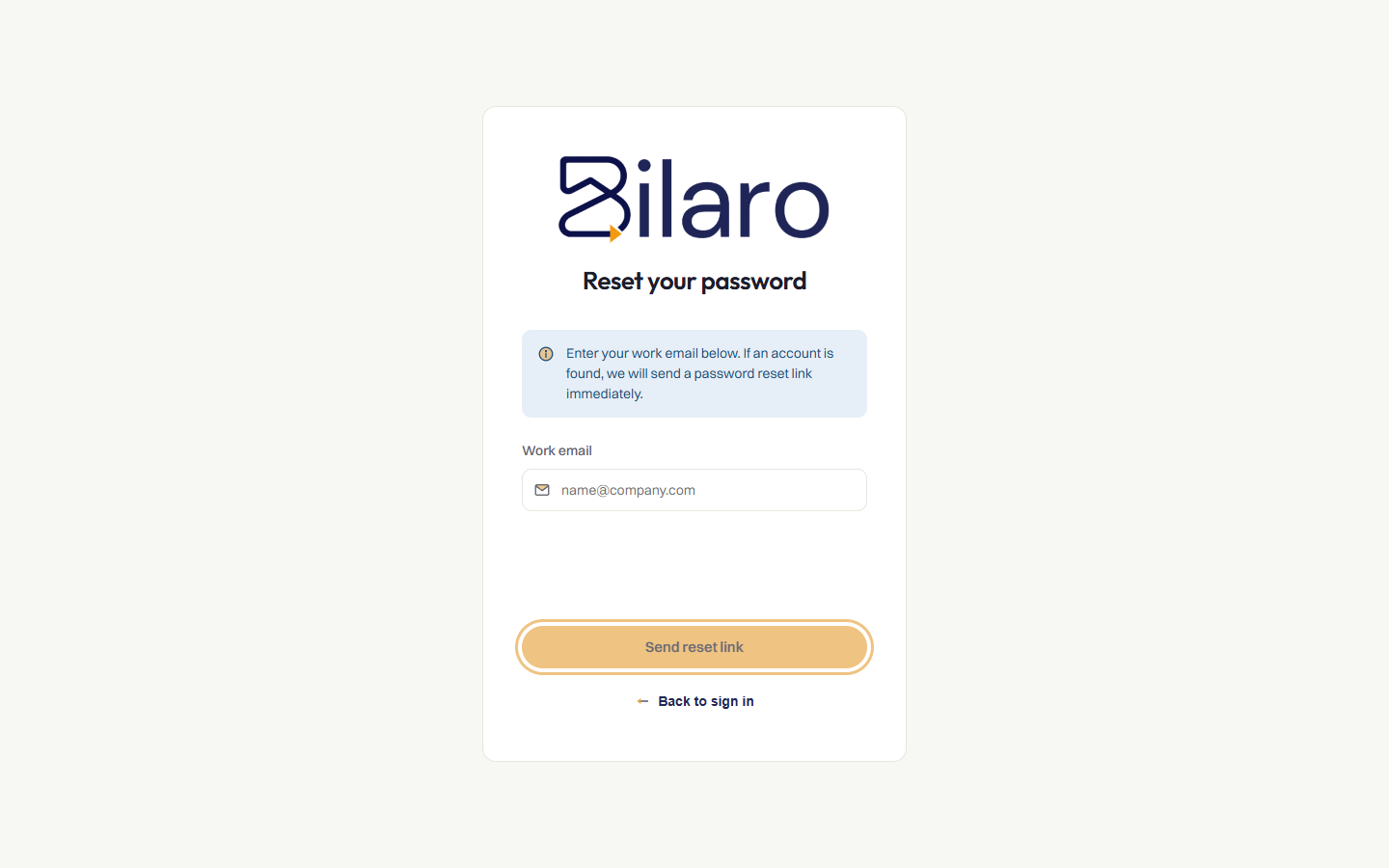
- On the sign-in screen, click the Forgot password? link located beneath the password field.
- On the Reset your password screen, enter your registered work email address.
- Click Send reset link.
- Open your email inbox, find the password reset email from Bilaro, and click the link provided.
- Enter your new password, confirm it, and click Reset password to complete the reset.
How to navigate the dashboard and sidebar
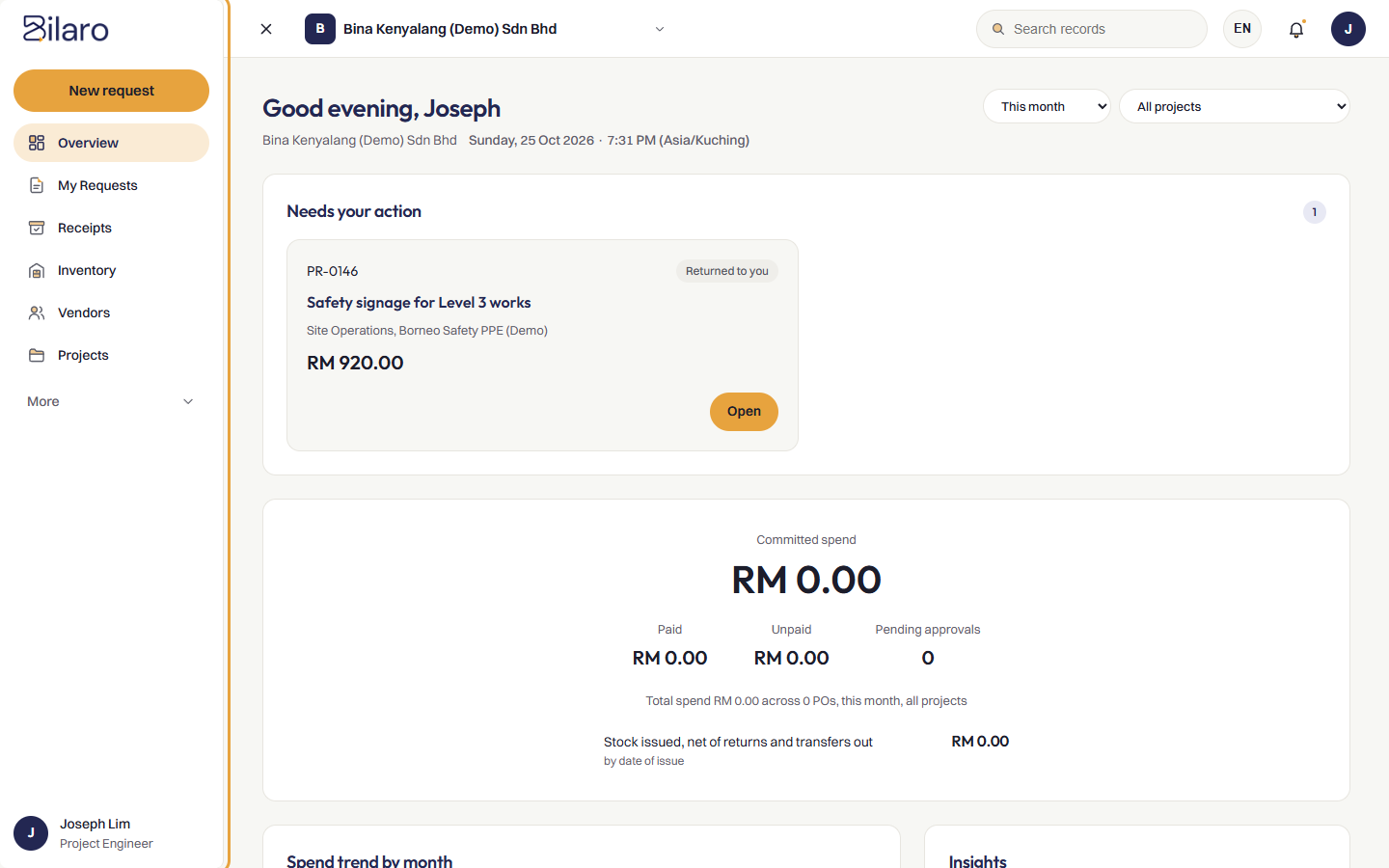
After signing in, Bilaro displays your main navigation interface consisting of a top bar and a left-hand sidebar.
Top navigation bar
- Search records: Search across purchase requests, purchase orders, and vendors.
- Company switcher: View and switch your active company profile if you belong to multiple organisations.
- Language selector: Switch between English (EN) and Bahasa Melayu (BM).
- Notifications: Click the bell icon to view unread alerts. Click View Notification History to review all past alerts.
- User profile menu: Click your avatar to access your profile, change your password, or log out.
Sidebar navigation
Depending on your assigned roles (Requester, Manager, Director, Finance, Receiver, or Admin), the sidebar provides quick access to core functions:
- Overview: View your personal dashboard metrics, spending summaries, and pending action items.
- To do: Everything waiting for you in one list (requests to approve, requests returned to you, POs to issue, goods to receive, supplier invoices to match and payments to record), with one count that matches the badge.
- New request: Create and submit a new procurement request.
- Requests: Review and track requests across tabs (Mine, All, Approved by me, and Pending payments) with List and Board views.
- Receipts: Access and search all Goods Receipt Notes (GRN) and Service Receipt Notes (SRN).
- More: Access supplementary modules including Vendors, Budgets, Analytics, Inventory, and Company Settings based on your permissions.
How to switch companies
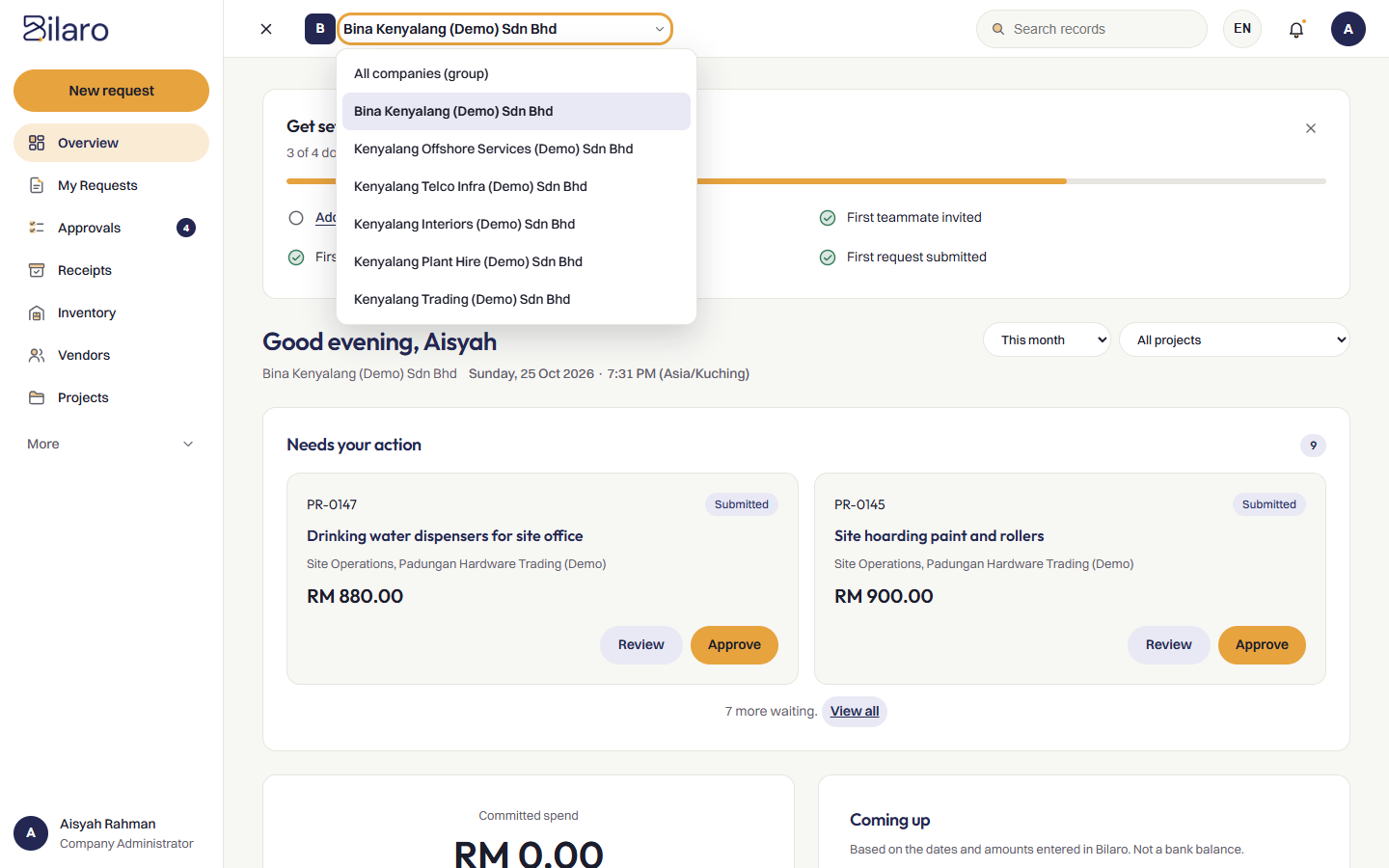
If your user account is associated with multiple company entities or subsidiaries:
- Locate the company name selector in the top navigation bar.
- Click the company selector to open the list of available organisations.
- Select the target company.
- Bilaro refreshes your view immediately, scoping all purchase requests, approval queues, budgets, and settings to the selected organisation.
How to change your display language
- Locate the language picker in the top navigation bar.
- Click EN for English or BM for Bahasa Melayu.
- The interface immediately translates all navigation headings, buttons, form fields, and status indicators without requiring you to reload the page.
How to view notifications
- Look at the bell icon in the top navigation bar. A circular badge appears when you have unread notifications.
- Click the bell icon to open the notifications panel.
- Review your recent updates (such as approved requests, returned drafts, or pending approval requests).
- Click View Notification History at the bottom of the panel to browse your complete notification archive.
How to view your profile and change your password
- Click your user avatar in the top right corner of the navigation bar.
- To inspect your account details:
- Click View Profile.
- Review your registered name, email address, assigned roles, and company affiliations.
- To update your password:
- Click Change Password.
- In Current password, enter your existing password.
- In New password, enter your new password.
- In Confirm new password, re-enter your new password.
- Click Update password.
- To sign out securely, click your user avatar and select Log out.
How to search across Bilaro
- Click the search input box labelled Search records in the top navigation bar.
- Type a purchase request reference number (such as
PR-0012), purchase order reference, vendor name, or keyword. - Press Enter to open the full search results page.
- Click any search result to open the corresponding request, order, or vendor record.
Need more help? Email support@bilaro.my.